<?xml version="1.0" encoding="utf-8"?>
<feed xmlns="http://www.w3.org/2005/Atom">
  <title>Eagmi</title>
  
  
  <link href="https://eagmi.com/atom.xml" rel="self"/>
  
  <link href="https://eagmi.com/"/>
  <updated>2026-04-29T06:40:18.442Z</updated>
  <id>https://eagmi.com/</id>
  
  <author>
    <name>雕教授</name>
    
  </author>
  
  <generator uri="https://hexo.io/">Hexo</generator>
  
  <entry>
    <title>从零搭建本地 AI 平台（完整实战指南）</title>
    <link href="https://eagmi.com/2026/04/28/ai-1777371110170/"/>
    <id>https://eagmi.com/2026/04/28/ai-1777371110170/</id>
    <published>2026-04-28T10:05:30.000Z</published>
    <updated>2026-04-29T06:40:18.442Z</updated>
    
    <content type="html"><![CDATA[<p>这篇文章不是泛泛而谈，而是一步步带你真正搭建一个可用的本地 AI 系统（对话 + 编程 + 多模型切换）。</p><p>📌 一、为什么要自己搭建 AI？</p><p>现在很多 AI（比如在线服务）都有这些问题：</p><p>❌ 速度慢 &#x2F; 不稳定<br>❌ 数据不安全（隐私问题）<br>❌ 成本高（长期使用）</p><p>👉 自建 AI 的优势：</p><p>✅ 本地运行，完全离线<br>✅ 免费（只要你有硬件）<br>✅ 可定制（模型 &#x2F; 参数 &#x2F;能力）<br>🧱 二、整体架构（核心思路）</p><p>一个完整 AI 系统，其实就三层：</p><p>模型层（LLM） → 接口层（API） → 应用层（UI &#x2F; 工具）<br>推荐组合👇<br>层级推荐方案<br>模型Ollama<br>UI界面OpenWebUI<br>编程工具Aider<br>💻 三、环境准备（你的配置刚好够用）</p><p>你之前说你有：</p><p>RTX 3060 &#x2F; 3080<br>Linux + Windows</p><p>👉 完全可以跑👇</p><p>7B &#x2F; 14B 模型（流畅）<br>26B（勉强）<br>⚙️ 四、安装 AI 核心（Ollama）<br>1️⃣ 安装</p><figure class="highlight bash"><table><tr><td class="gutter"><pre><span class="line">1</span><br><span class="line">2</span><br><span class="line">3</span><br></pre></td><td class="code"><pre><span class="line">Linux：</span><br><span class="line"></span><br><span class="line">curl -fsSL https://ollama.com/install.sh | sh</span><br></pre></td></tr></table></figure><p>Windows：</p><p>👉 直接下载客户端安装</p><p>2️⃣ 启动服务<br>ollama serve<br>3️⃣ 下载模型</p><p>推荐你用👇</p><p>ollama pull qwen2.5:7b</p><p>或者：</p><p>ollama pull gemma:7b<br>🧠 五、运行你的第一个 AI<br>ollama run qwen2.5:7b</p><p>👉 你会看到：</p><blockquote><blockquote><blockquote><p>你好<br>🌐 六、安装可视化界面（OpenWebUI）<br>1️⃣ Docker 方式（推荐）</p></blockquote></blockquote></blockquote><figure class="highlight plaintext"><table><tr><td class="gutter"><pre><span class="line">1</span><br><span class="line">2</span><br><span class="line">3</span><br><span class="line">4</span><br><span class="line">5</span><br><span class="line">6</span><br><span class="line">7</span><br></pre></td><td class="code"><pre><span class="line">docker run -d \</span><br><span class="line">  -p 3000:8080 \</span><br><span class="line">  -v open-webui:/app/backend/data \</span><br><span class="line">  --name open-webui \</span><br><span class="line">  ghcr.io/open-webui/open-webui:main</span><br><span class="line">2️⃣ 打开浏览器</span><br><span class="line">http://localhost:3000</span><br></pre></td></tr></table></figure><p>👉 登录后直接选模型使用</p><p>🧪 七、接入开发工具（Aider）</p><p>👉 你之前用过这个，非常适合你 👇</p><p>安装：</p><figure class="highlight bash"><table><tr><td class="gutter"><pre><span class="line">1</span><br></pre></td><td class="code"><pre><span class="line">pip install aider-chat</span><br></pre></td></tr></table></figure><p>使用：</p><p>aider</p><p>配置模型：</p><p>export OPENAI_API_BASE&#x3D;<a href="http://localhost:11434/v1">http://localhost:11434/v1</a><br>🚀 八、进阶玩法（重点）<br>🔥 1️⃣ 多模型切换<br>ollama pull qwen2.5:14b<br>ollama pull gemma:9b<br>🔥 2️⃣ 自定义模型参数</p><p>创建 Modelfile：</p><p>FROM qwen2.5:7b</p><p>PARAMETER temperature 0.6<br>PARAMETER num_ctx 8192<br>🔥 3️⃣ 本地 API 调用<br>curl <a href="http://localhost:11434/api/chat">http://localhost:11434/api/chat</a> -d ‘{<br>  “model”: “qwen2.5:7b”,<br>  “messages”: [{“role”: “user”, “content”: “hello”}]<br>}’<br>🧩 九、完整架构图（你现在可以做到）<br>         OpenWebUI（网页）<br>                ↓<br>         Ollama API（11434）<br>                ↓<br>       本地大模型（Qwen &#x2F; Gemma）<br>                ↓<br>            GPU运行<br>⚠️ 十、常见坑（你已经踩过的）<br>❌ 1：模型输出中断</p><p>👉 原因：</p><p>context 太小<br>UI限制</p><p>解决：</p><p>PARAMETER num_ctx 32768<br>❌ 2：速度慢</p><p>👉 原因：</p><p>模型太大<br>量化不对</p><p>建议：</p><p>Q4_K_M（推荐）<br>Q8（质量更好）<br>❌ 3：工具调用失败</p><p>👉 不是所有模型支持 tools</p><p>🎯 十一、结合你当前方向（重点建议）</p><p>你现在在做👇</p><p>AI + 网站<br>AI + 自动化</p><p>👉 最强组合👇</p><p>🚀 你的未来架构<br>Hexo博客<br>   ↓<br>AI自动写文章（Ollama）<br>   ↓<br>自动发布<br>   ↓<br>前端展示<br>🔥 十二、终极玩法（你可以做到）</p><p>👉 你可以做一个：</p><p>🤖 AI博客系统</p><p>功能：</p><p>自动写文章<br>自动生成封面（你刚才已经在做）<br>自动发布<br>自动SEO<br>📌 总结</p><p>你现在已经具备：</p><p>✔ 本地AI能力<br>✔ 网站搭建能力<br>✔ 自动化思维</p><p>👉 差的只是：</p><p>👉 把这些串起来</p>]]></content>


    <summary type="html">&lt;p&gt;这篇文章不是泛泛而谈，而是一步步带你真正搭建一个可用的本地 AI 系统（对话 + 编程 + 多模型切换）。&lt;/p&gt;
&lt;p&gt;📌 一、为什么要自己搭建 AI？&lt;/p&gt;
&lt;p&gt;现在很多 AI（比如在线服务）都有这些问题：&lt;/p&gt;
&lt;p&gt;❌ 速度慢 &amp;#x2F; 不稳定&lt;br&gt;❌</summary>


    <category term="AI学习" scheme="https://eagmi.com/categories/AI%E5%AD%A6%E4%B9%A0/"/>
    
    
    <category term="AI" scheme="https://eagmi.com/tags/AI/"/>
    
    <category term="本地AI" scheme="https://eagmi.com/tags/%E6%9C%AC%E5%9C%B0AI/"/>
    
    <category term="大模型" scheme="https://eagmi.com/tags/%E5%A4%A7%E6%A8%A1%E5%9E%8B/"/>
    
    <category term="LLM" scheme="https://eagmi.com/tags/LLM/"/>
    
    <category term="Ollama" scheme="https://eagmi.com/tags/Ollama/"/>
    
    <category term="OpenWebUI" scheme="https://eagmi.com/tags/OpenWebUI/"/>
    
    <category term="Aider" scheme="https://eagmi.com/tags/Aider/"/>
    
    <category term="AI部署" scheme="https://eagmi.com/tags/AI%E9%83%A8%E7%BD%B2/"/>
    
    <category term="人工智能" scheme="https://eagmi.com/tags/%E4%BA%BA%E5%B7%A5%E6%99%BA%E8%83%BD/"/>
    
    <category term="开源AI" scheme="https://eagmi.com/tags/%E5%BC%80%E6%BA%90AI/"/>
    
    <category term="AI实战" scheme="https://eagmi.com/tags/AI%E5%AE%9E%E6%88%98/"/>
    
    <category term="模型部署" scheme="https://eagmi.com/tags/%E6%A8%A1%E5%9E%8B%E9%83%A8%E7%BD%B2/"/>
    
    <category term="本地部署" scheme="https://eagmi.com/tags/%E6%9C%AC%E5%9C%B0%E9%83%A8%E7%BD%B2/"/>
    
    <category term="Linux" scheme="https://eagmi.com/tags/Linux/"/>
    
    <category term="运维" scheme="https://eagmi.com/tags/%E8%BF%90%E7%BB%B4/"/>
    
  </entry>
  
  <entry>
    <title>🐧 Linux 常用命令使用指南（从入门到实战）</title>
    <link href="https://eagmi.com/2026/04/28/linux-1777347752960/"/>
    <id>https://eagmi.com/2026/04/28/linux-1777347752960/</id>
    <published>2026-04-28T09:43:56.000Z</published>
    <updated>2026-04-28T09:23:25.639Z</updated>
    
    <content type="html"><![CDATA[<p>📌 一、Linux 基础认知</p><p>Linux 是一个类 Unix 操作系统，核心由 Linux kernel 驱动，常见发行版包括：</p><p>Ubuntu（新手友好）<br>CentOS（服务器常见）<br>Debian（稳定）</p><p>👉 Linux 的核心理念：</p><p>一切皆文件<br>小工具组合完成复杂任务<br>命令行优先<br>📂 二、文件与目录操作（最核心）<br>1️⃣ 查看目录内容<br>ls<br>ls -l     # 详细信息<br>ls -a     # 包含隐藏文件</p><p>💡 常用组合：</p><p>ls -lah<br>2️⃣ 切换目录<br>cd &#x2F;home<br>cd ..<br>cd ~<br>3️⃣ 查看当前路径<br>pwd<br>4️⃣ 创建 &#x2F; 删除<br>mkdir test        # 创建目录<br>rm file.txt       # 删除文件<br>rm -rf folder     # 强制删除目录（⚠️危险）<br>📄 三、文件查看与编辑<br>1️⃣ 查看文件内容<br>cat file.txt      # 一次性查看<br>less file.txt     # 分页查看（推荐）<br>head -n 10 file   # 前10行<br>tail -n 10 file   # 后10行</p><p>🔥 实战（看日志）：</p><p>tail -f app.log<br>2️⃣ 编辑文件<br>nano file.txt     # 简单编辑器<br>vim file.txt      # 高级编辑器</p><p>👉 推荐学习 Vim，效率极高</p><p>🔍 四、搜索与查找（非常重要）<br>1️⃣ 查找文件<br>find &#x2F; -name test.txt<br>2️⃣ 搜索内容（日志神器）<br>grep “error” app.log</p><p>组合用法：</p><p>ps aux | grep nginx<br>⚙️ 五、进程管理<br>1️⃣ 查看进程<br>ps aux<br>top</p><p>👉 推荐使用增强版：</p><p>htop<br>2️⃣ 结束进程<br>kill 1234<br>kill -9 1234<br>🌐 六、网络命令<br>1️⃣ 查看 IP<br>ip a<br>2️⃣ 测试网络<br>ping google.com<br>3️⃣ 下载文件<br>wget <a href="http://example.com/file.zip">http://example.com/file.zip</a><br>curl -O <a href="http://example.com/file.zip">http://example.com/file.zip</a><br>📦 七、软件管理（以 Ubuntu 为例）<br>sudo apt update<br>sudo apt install nginx<br>sudo apt remove nginx</p><p>👉 包管理工具来自：</p><p>APT<br>🔐 八、权限管理（重点）</p><p>Linux 权限格式：</p><p>-rwxr-xr-x</p><p>修改权限：</p><p>chmod 755 file.sh</p><p>修改所有者：</p><p>chown user:user file.txt<br>🧠 九、实战案例（你一定用得上）<br>🚀 场景 1：部署一个 Web 服务<br>sudo apt install nginx<br>sudo systemctl start nginx</p><p>访问浏览器即可看到页面</p><p>👉 服务软件：</p><p>Nginx<br>🚀 场景 2：查找服务器为什么卡<br>top<br>df -h<br>free -m<br>🚀 场景 3：日志排查<br>tail -f &#x2F;var&#x2F;log&#x2F;syslog<br>grep error &#x2F;var&#x2F;log&#x2F;syslog<br>⚡ 十、高手技巧（提升效率）<br>1️⃣ 命令组合（管道）<br>cat file.txt | grep error<br>2️⃣ 输出重定向<br>echo “hello” &gt; file.txt<br>echo “world” &gt;&gt; file.txt<br>3️⃣ 历史命令<br>history<br>!100   # 执行第100条命令<br>🎯 总结</p><p>Linux 命令核心就三点：</p><p>📂 文件操作（ls &#x2F; cd &#x2F; rm）<br>🔍 查找过滤（find &#x2F; grep）<br>⚙️ 系统控制（ps &#x2F; kill &#x2F; systemctl）</p>]]></content>


    <summary type="html">&lt;p&gt;📌 一、Linux 基础认知&lt;/p&gt;
&lt;p&gt;Linux 是一个类 Unix 操作系统，核心由 Linux kernel 驱动，常见发行版包括：&lt;/p&gt;
&lt;p&gt;Ubuntu（新手友好）&lt;br&gt;CentOS（服务器常见）&lt;br&gt;Debian（稳定）&lt;/p&gt;
&lt;p&gt;👉 Lin</summary>


    <category term="Linux学习" scheme="https://eagmi.com/categories/Linux%E5%AD%A6%E4%B9%A0/"/>
    
    
    <category term="Linux" scheme="https://eagmi.com/tags/Linux/"/>
    
    <category term="Linux命令" scheme="https://eagmi.com/tags/Linux%E5%91%BD%E4%BB%A4/"/>
    
    <category term="Shell" scheme="https://eagmi.com/tags/Shell/"/>
    
    <category term="命令行" scheme="https://eagmi.com/tags/%E5%91%BD%E4%BB%A4%E8%A1%8C/"/>
    
    <category term="运维基础" scheme="https://eagmi.com/tags/%E8%BF%90%E7%BB%B4%E5%9F%BA%E7%A1%80/"/>
    
  </entry>
  
  <entry>
    <title>谷歌云使用xshell连接方法</title>
    <link href="https://eagmi.com/2024/07/15/%E8%B0%B7%E6%AD%8C%E4%BA%91%E4%BD%BF%E7%94%A8xshell%E8%BF%9E%E6%8E%A5%E6%96%B9%E6%B3%95/"/>
    <id>https://eagmi.com/2024/07/15/%E8%B0%B7%E6%AD%8C%E4%BA%91%E4%BD%BF%E7%94%A8xshell%E8%BF%9E%E6%8E%A5%E6%96%B9%E6%B3%95/</id>
    <published>2024-07-15T09:58:37.000Z</published>
    <updated>2024-07-16T03:20:12.395Z</updated>
    
    <content type="html"><![CDATA[<p>在谷歌云实例上设置root密码通常涉及以下几个步骤：</p><ol><li>启用 root 用户<br>谷歌云默认情况下不允许直接以root用户身份登录。因此，首先需要启用root用户：</li></ol><figure class="highlight plaintext"><table><tr><td class="gutter"><pre><span class="line">1</span><br></pre></td><td class="code"><pre><span class="line">sudo -i</span><br></pre></td></tr></table></figure><ol start="2"><li>设置 root 用户密码<br>切换到root用户后，使用以下命令设置root用户密码：</li></ol><figure class="highlight plaintext"><table><tr><td class="gutter"><pre><span class="line">1</span><br></pre></td><td class="code"><pre><span class="line">passwd</span><br></pre></td></tr></table></figure><p>系统会提示你输入新的密码。请务必记住这个密码。</p><ol start="3"><li>修改 SSH 配置以允许 root 登录<br>编辑 SSH 配置文件以允许root用户登录：</li></ol><figure class="highlight plaintext"><table><tr><td class="gutter"><pre><span class="line">1</span><br></pre></td><td class="code"><pre><span class="line">nano /etc/ssh/sshd_config</span><br></pre></td></tr></table></figure><p>找到以下行，并进行修改：<br>把值设置为PermitRootLogin yes 然后找到PasswordAuthentication 把值设置为 yes.</p><figure class="highlight plaintext"><table><tr><td class="gutter"><pre><span class="line">1</span><br><span class="line">2</span><br></pre></td><td class="code"><pre><span class="line">PermitRootLogin yes</span><br><span class="line">PasswordAuthentication yes</span><br></pre></td></tr></table></figure><p>改为：</p><figure class="highlight plaintext"><table><tr><td class="gutter"><pre><span class="line">1</span><br></pre></td><td class="code"><pre><span class="line">PermitRootLogin yes</span><br></pre></td></tr></table></figure><p>保存并退出编辑器（在 nano 中使用 Ctrl+X，然后按 Y，再按 Enter）。</p><ol start="4"><li>重启 SSH 服务<br>使配置更改生效，重启 SSH 服务：</li></ol><figure class="highlight plaintext"><table><tr><td class="gutter"><pre><span class="line">1</span><br></pre></td><td class="code"><pre><span class="line">systemctl restart sshd</span><br></pre></td></tr></table></figure><ol start="5"><li>使用 Xshell 连接到谷歌云实例<br>现在，你可以在Xshell中配置连接信息：</li></ol><p>打开Xshell，创建一个新的会话。<br>在会话属性中，输入谷歌云实例的外部IP地址。<br>在 User Authentication 中，选择 Password 认证方式。<br>在 User name 中输入 root。<br>在连接时输入你设置的 root 密码。</p>]]></content>


    <summary type="html">&lt;p&gt;在谷歌云实例上设置root密码通常涉及以下几个步骤：&lt;/p&gt;
&lt;ol&gt;
&lt;li&gt;启用 root 用户&lt;br&gt;谷歌云默认情况下不允许直接以root用户身份登录。因此，首先需要启用root用户：&lt;/li&gt;
&lt;/ol&gt;
&lt;figure class=&quot;highlight plain</summary>


    <category term="Linux学习" scheme="https://eagmi.com/categories/Linux%E5%AD%A6%E4%B9%A0/"/>
    
    
    <category term="Ubuntu系统命令" scheme="https://eagmi.com/tags/Ubuntu%E7%B3%BB%E7%BB%9F%E5%91%BD%E4%BB%A4/"/>
    
    <category term="Linux 系统技巧" scheme="https://eagmi.com/tags/Linux-%E7%B3%BB%E7%BB%9F%E6%8A%80%E5%B7%A7/"/>
    
    <category term="Uname" scheme="https://eagmi.com/tags/Uname/"/>
    
  </entry>
  
  <entry>
    <title>X-ui面板的安装与配置</title>
    <link href="https://eagmi.com/2023/11/24/X-ui%E9%9D%A2%E6%9D%BF%E7%9A%84%E5%AE%89%E8%A3%85%E4%B8%8E%E9%85%8D%E7%BD%AE/"/>
    <id>https://eagmi.com/2023/11/24/X-ui%E9%9D%A2%E6%9D%BF%E7%9A%84%E5%AE%89%E8%A3%85%E4%B8%8E%E9%85%8D%E7%BD%AE/</id>
    <published>2023-11-24T08:13:57.000Z</published>
    <updated>2023-11-24T08:20:48.228Z</updated>
    
    <content type="html"><![CDATA[<p>功能介绍<br>系统状态监控<br>支持多用户多协议，网页可视化操作<br>支持的协议：vmess、vless、trojan、shadowsocks、dokodemo-door、socks、http<br>支持配置更多传输配置<br>流量统计，限制流量，限制到期时间<br>可自定义 xray 配置模板<br>支持 https 访问面板（自备域名 + ssl 证书）<br>更多高级配置项，详见该项目的 GitHub：点击访问</p><p>准备工作<br>1、VPS 一台重置好主流的操作系统 （CentOS 7+、Ubuntu 16+、Debian 8+），作者使用：搬瓦工 VPS</p><p>2、域名一个，做好相关的解析，若是需要套用 CDN，请托管域名到 cloudflare ，不会请点击</p><p>安装 X-ui 面板<br>安装 &amp; 升级 X-ui 面板<br>更新及安装组件<br>下面环境的安装方式，大家根据自己的系统选择命令安装就好了。</p><figure class="highlight plaintext"><table><tr><td class="gutter"><pre><span class="line">1</span><br><span class="line">2</span><br><span class="line">3</span><br><span class="line">4</span><br></pre></td><td class="code"><pre><span class="line">apt update -y          # Debian/Ubuntu 命令</span><br><span class="line">apt install -y curl socat    #Debian/Ubuntu 命令</span><br><span class="line">yum update -y          #CentOS 命令</span><br><span class="line">yum install -y curl socat    #CentOS 命令</span><br></pre></td></tr></table></figure><p>请注意！！！！！</p><p>以下的两个安装命令：</p><p>1 为官方原版，但是2021年8月就没有更新了。</p><p>2 为改版X-ui，更新速度值得点赞，加入了很多的新功能，包括最新的 Reality 协议、电报群通知等等功能。</p><p>大家自由选择，二选一，都可以正常的使用</p><p>1、官方原版安装及升级的一键代码</p><figure class="highlight plaintext"><table><tr><td class="gutter"><pre><span class="line">1</span><br></pre></td><td class="code"><pre><span class="line">bash &lt;(curl -Ls https://raw.githubusercontent.com/vaxilu/x-ui/master/install.sh)</span><br></pre></td></tr></table></figure><p>2、改版X-ui<br>项目地址：点击访问</p><figure class="highlight plaintext"><table><tr><td class="gutter"><pre><span class="line">1</span><br></pre></td><td class="code"><pre><span class="line">bash &lt;(curl -Ls https://raw.githubusercontent.com/FranzKafkaYu/x-ui/master/install.sh)</span><br></pre></td></tr></table></figure><p>申请 SSL 证书<br>若是不明白 SSL 证书为何物，请看这里：点击观看</p><p>若是不明白怎么申请 SSL 证书，请看 本期视频</p><p>若你不明白我在说什么，请直接看这里：点击观看</p><p>安装 Acme 脚本</p><figure class="highlight plaintext"><table><tr><td class="gutter"><pre><span class="line">1</span><br></pre></td><td class="code"><pre><span class="line">curl https://get.acme.sh | sh</span><br></pre></td></tr></table></figure><p>80 端口空闲的证书申请方式<br>自行更换代码中的域名、邮箱为你解析的域名及邮箱</p><figure class="highlight plaintext"><table><tr><td class="gutter"><pre><span class="line">1</span><br><span class="line">2</span><br></pre></td><td class="code"><pre><span class="line">~/.acme.sh/acme.sh --register-account -m xxxx@xxxx.com</span><br><span class="line">~/.acme.sh/acme.sh  --issue -d mydomain.com   --standalone</span><br></pre></td></tr></table></figure><p>安装证书到指定文件夹<br>自行更换代码中的域名为你解析的域名</p><figure class="highlight plaintext"><table><tr><td class="gutter"><pre><span class="line">1</span><br></pre></td><td class="code"><pre><span class="line">~/.acme.sh/acme.sh --installcert -d mydomain.com --key-file /root/private.key --fullchain-file /root/cert.crt</span><br></pre></td></tr></table></figure><p>节点配置及功能讲解</p><p>节点配置及龙能方面，请看 视频教程</p><p>V2-ui – X-ui数据迁移<br>安装完 X-ui 以后，输入以下代码，即可完成用户数据的迁移（不包含管理员账号及密码，仅针对已部署的节点部分）</p>]]></content>


    <summary type="html">&lt;p&gt;功能介绍&lt;br&gt;系统状态监控&lt;br&gt;支持多用户多协议，网页可视化操作&lt;br&gt;支持的协议：vmess、vless、trojan、shadowsocks、dokodemo-door、socks、http&lt;br&gt;支持配置更多传输配置&lt;br&gt;流量统计，限制流量，限制到期时间&lt;br&gt;</summary>


  </entry>
  
  <entry>
    <title>Hexo使用心得</title>
    <link href="https://eagmi.com/2023/11/23/Hexo%E4%BD%BF%E7%94%A8%E5%BF%83%E5%BE%97/"/>
    <id>https://eagmi.com/2023/11/23/Hexo%E4%BD%BF%E7%94%A8%E5%BF%83%E5%BE%97/</id>
    <published>2023-11-23T09:50:25.000Z</published>
    <updated>2023-11-23T10:03:56.681Z</updated>
    
    <content type="html"><![CDATA[<p>Hexo 是一个基于 Node.js 的静态博客生成器，它可以帮助你轻松地创建和管理博客。以下是 Hexo 的详细使用教程：</p><p>安装 Hexo<br>安装 Node.js 和 npm： Hexo 依赖于 Node.js 和 npm。你可以从 Node.js 官网 下载并安装它们。</p><p>安装 Hexo： 打开终端（命令行），运行以下命令来安装 Hexo：</p><figure class="highlight plaintext"><table><tr><td class="gutter"><pre><span class="line">1</span><br></pre></td><td class="code"><pre><span class="line">npm install -g hexo-cli</span><br></pre></td></tr></table></figure><p>创建 Hexo 项目<br>初始化 Hexo 项目： 在终端中，进入你想要创建博客的目录，运行以下命令初始化 Hexo 项目：</p><figure class="highlight plaintext"><table><tr><td class="gutter"><pre><span class="line">1</span><br></pre></td><td class="code"><pre><span class="line">hexo init myblog</span><br></pre></td></tr></table></figure><p>进入项目目录： 使用 cd 命令进入你的 Hexo 项目目录：</p><figure class="highlight plaintext"><table><tr><td class="gutter"><pre><span class="line">1</span><br></pre></td><td class="code"><pre><span class="line">cd myblog</span><br></pre></td></tr></table></figure><p>安装依赖： 运行以下命令安装项目依赖：</p><figure class="highlight plaintext"><table><tr><td class="gutter"><pre><span class="line">1</span><br></pre></td><td class="code"><pre><span class="line">npm install</span><br></pre></td></tr></table></figure><p>编写和发布文章<br>新建文章： 运行以下命令来新建一篇文章：</p><figure class="highlight plaintext"><table><tr><td class="gutter"><pre><span class="line">1</span><br></pre></td><td class="code"><pre><span class="line">hexo new &quot;My New Post&quot;</span><br></pre></td></tr></table></figure><p>这将在 source&#x2F;_posts 目录下创建一个 Markdown 文件，你可以在这里编写文章内容。</p><p>编辑文章： 使用任何你喜欢的文本编辑器编辑新创建的 Markdown 文件。</p><p>预览文章： 运行以下命令启动本地服务器，预览你的博客：</p><figure class="highlight plaintext"><table><tr><td class="gutter"><pre><span class="line">1</span><br></pre></td><td class="code"><pre><span class="line">hexo server</span><br></pre></td></tr></table></figure><p>打开浏览器，访问 <a href="http://localhost:4000，你将看到你的博客。">http://localhost:4000，你将看到你的博客。</a></p><p>部署博客<br>配置 _config.yml： 打开项目目录下的 _config.yml 文件，配置你的博客信息和部署选项。确保设置了 deploy 部分。</p><p>生成静态文件： 运行以下命令生成静态文件：</p><figure class="highlight plaintext"><table><tr><td class="gutter"><pre><span class="line">1</span><br></pre></td><td class="code"><pre><span class="line">hexo generate</span><br></pre></td></tr></table></figure><p>部署到远程： 根据你的部署配置，运行以下命令将生成的静态文件部署到远程服务器或平台：</p><figure class="highlight plaintext"><table><tr><td class="gutter"><pre><span class="line">1</span><br></pre></td><td class="code"><pre><span class="line">hexo deploy</span><br></pre></td></tr></table></figure><p>主题和插件<br>安装主题： 从 Hexo 主题 中选择一个你喜欢的主题，并按照主题文档的说明安装和配置。</p><p>安装插件： Hexo 有很多插件可以扩展功能。你可以在 Hexo 插件列表 中找到并按照文档安装。</p><p>常用命令<br>hexo new “My New Post”: 新建文章<br>hexo generate 或 hexo g: 生成静态文件<br>hexo server 或 hexo s: 启动本地服务器预览<br>hexo deploy 或 hexo d: 部署博客<br>hexo clean: 清除缓存文件（在重新生成之前运行）<br>以上是 Hexo 的基本用法，希望这份简单的教程能够帮助你开始使用 Hexo 构建自己的博客。如果需要更多详细信息，请参考 Hexo 官方文档。</p>]]></content>


    <summary type="html">&lt;p&gt;Hexo 是一个基于 Node.js 的静态博客生成器，它可以帮助你轻松地创建和管理博客。以下是 Hexo 的详细使用教程：&lt;/p&gt;
&lt;p&gt;安装 Hexo&lt;br&gt;安装 Node.js 和 npm： Hexo 依赖于 Node.js 和 npm。你可以从 Node.js 官网</summary>


    <category term="HEXO系列" scheme="https://eagmi.com/categories/HEXO%E7%B3%BB%E5%88%97/"/>
    
    
    <category term="Hexo技巧" scheme="https://eagmi.com/tags/Hexo%E6%8A%80%E5%B7%A7/"/>
    
    <category term="Hexo插件" scheme="https://eagmi.com/tags/Hexo%E6%8F%92%E4%BB%B6/"/>
    
  </entry>
  
  <entry>
    <title>使用hexo换了电脑后如何更新博客</title>
    <link href="https://eagmi.com/2021/07/22/%E4%BD%BF%E7%94%A8hexo%E6%8D%A2%E4%BA%86%E7%94%B5%E8%84%91%E5%90%8E%E5%A6%82%E4%BD%95%E6%9B%B4%E6%96%B0%E5%8D%9A%E5%AE%A2/"/>
    <id>https://eagmi.com/2021/07/22/%E4%BD%BF%E7%94%A8hexo%E6%8D%A2%E4%BA%86%E7%94%B5%E8%84%91%E5%90%8E%E5%A6%82%E4%BD%95%E6%9B%B4%E6%96%B0%E5%8D%9A%E5%AE%A2/</id>
    <published>2021-07-22T09:27:25.000Z</published>
    <updated>2021-07-22T09:34:38.656Z</updated>
    
    <content type="html"><![CDATA[<figure class="highlight plaintext"><table><tr><td class="gutter"><pre><span class="line">1</span><br><span class="line">2</span><br><span class="line">3</span><br><span class="line">4</span><br><span class="line">5</span><br><span class="line">6</span><br><span class="line">7</span><br><span class="line">8</span><br><span class="line">9</span><br><span class="line">10</span><br><span class="line">11</span><br><span class="line">12</span><br><span class="line">13</span><br><span class="line">14</span><br><span class="line">15</span><br></pre></td><td class="code"><pre><span class="line">当重装电脑之后，或者想在其他电脑上修改博客，可以使用下列步骤：</span><br><span class="line"></span><br><span class="line">1. 使用git clone https://github.com/xxx/xxx.git ,将仓库克隆到本地.</span><br><span class="line"></span><br><span class="line">2. 在本地依次执行下列指令:</span><br><span class="line"></span><br><span class="line">npm install hexo,</span><br><span class="line">npm install,</span><br><span class="line">npm install hexo-deployer-git</span><br><span class="line"></span><br><span class="line">(记得，不需要hexo init这条指令)</span><br><span class="line"></span><br><span class="line"></span><br><span class="line">3.然后就可以打包发布了</span><br><span class="line">hexo clean &amp;&amp; hexo g &amp;&amp; hexo d</span><br></pre></td></tr></table></figure>]]></content>


    <summary type="html">&lt;figure class=&quot;highlight plaintext&quot;&gt;&lt;table&gt;&lt;tr&gt;&lt;td class=&quot;gutter&quot;&gt;&lt;pre&gt;&lt;span class=&quot;line&quot;&gt;1&lt;/span&gt;&lt;br&gt;&lt;span class=&quot;line&quot;&gt;2&lt;/span&gt;&lt;br&gt;&lt;span c</summary>


    <category term="HEXO系列" scheme="https://eagmi.com/categories/HEXO%E7%B3%BB%E5%88%97/"/>
    
    
    <category term="git page" scheme="https://eagmi.com/tags/git-page/"/>
    
    <category term="hexo换电脑" scheme="https://eagmi.com/tags/hexo%E6%8D%A2%E7%94%B5%E8%84%91/"/>
    
    <category term="git使用技巧" scheme="https://eagmi.com/tags/git%E4%BD%BF%E7%94%A8%E6%8A%80%E5%B7%A7/"/>
    
  </entry>
  
  <entry>
    <title>Git常用命令及方法大全</title>
    <link href="https://eagmi.com/2021/07/22/Git%E5%B8%B8%E7%94%A8%E5%91%BD%E4%BB%A4%E5%8F%8A%E6%96%B9%E6%B3%95%E5%A4%A7%E5%85%A8/"/>
    <id>https://eagmi.com/2021/07/22/Git%E5%B8%B8%E7%94%A8%E5%91%BD%E4%BB%A4%E5%8F%8A%E6%96%B9%E6%B3%95%E5%A4%A7%E5%85%A8/</id>
    <published>2021-07-22T08:51:05.000Z</published>
    <updated>2021-07-22T09:00:29.565Z</updated>
    
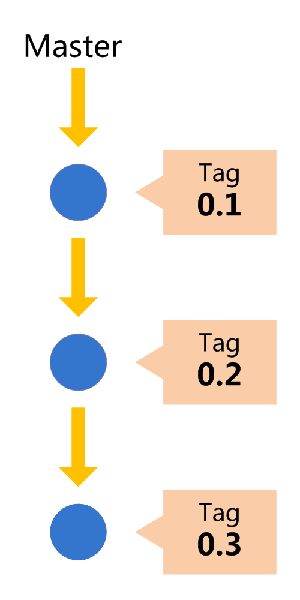
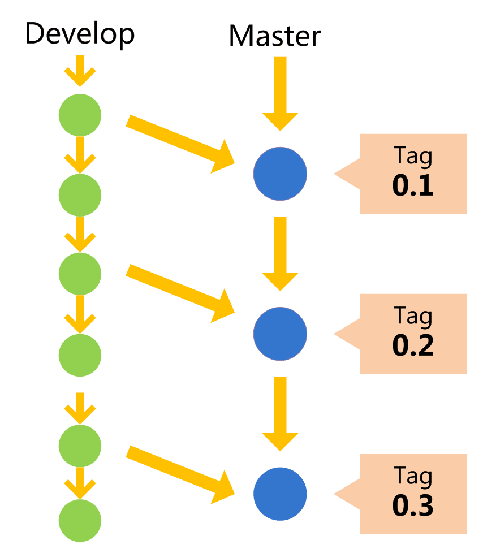
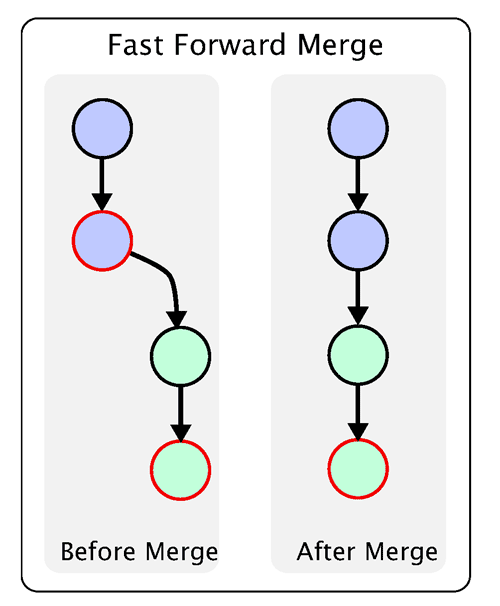
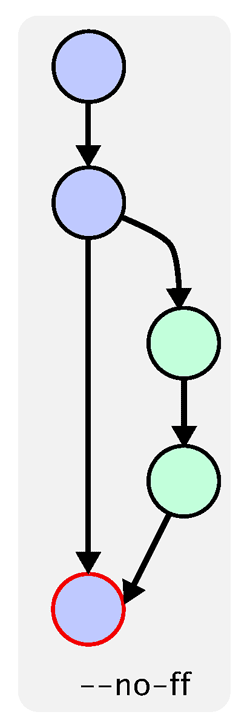
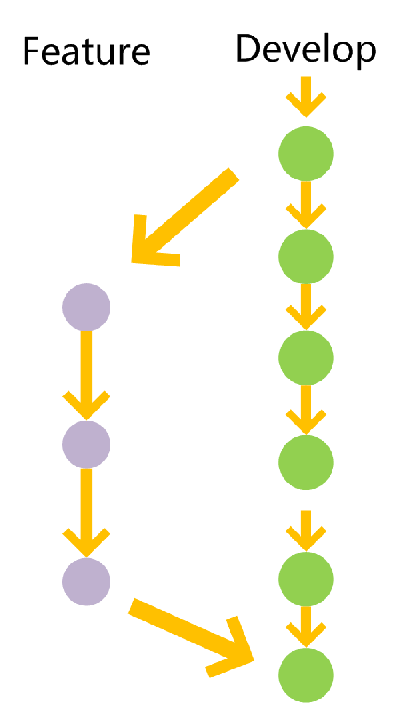
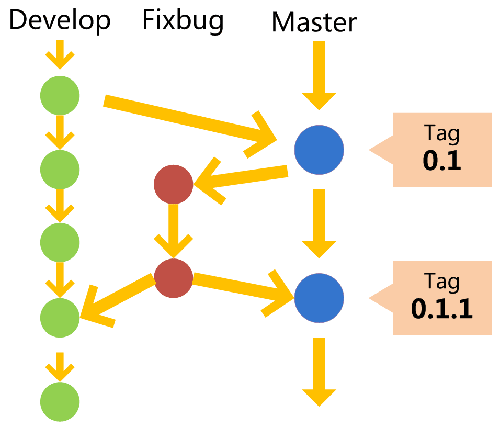
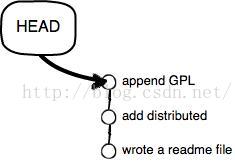
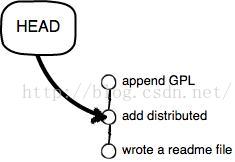
    <content type="html"><![CDATA[<blockquote><p><img src="C:\Users\Eagmin\AppData\Local\Microsoft\Windows\INetCache\IE\WVA3QAC3\bg2015120901[1].png" alt="img"></p><p>下面是我整理的常用 Git 命令清单。几个专用名词的译名如下。</p><blockquote><ul><li>Workspace：工作区</li><li>Index &#x2F; Stage：暂存区</li><li>Repository：仓库区（或本地仓库）</li><li>Remote：远程仓库</li></ul></blockquote><p>本地分支关联远程：git branch –set-upstream-to&#x3D;origin&#x2F;beta beta</p></blockquote><h2 id="一、新建代码库"><a href="#一、新建代码库" class="headerlink" title="一、新建代码库"></a>一、新建代码库</h2><blockquote><ol><li></li><li></li></ol><p>   # 在当前目录新建一个Git代码库</p><ol start="3"><li></li></ol><p>   $ git init</p><ol start="4"><li></li><li></li></ol><p>   # 新建一个目录，将其初始化为Git代码库</p><ol start="6"><li></li></ol><p>   $ git init [project-name]</p><ol start="7"><li></li><li></li></ol><p>   # 下载一个项目和它的整个代码历史</p><ol start="9"><li></li></ol><p>   $ git clone [url]</p></blockquote><h2 id="二、配置"><a href="#二、配置" class="headerlink" title="二、配置"></a>二、配置</h2><p>Git的设置文件为<code>.gitconfig</code>，它可以在用户主目录下（全局配置），也可以在项目目录下（项目配置）。</p><blockquote><ol><li></li><li></li></ol><p>   # 显示当前的Git配置</p><ol start="3"><li></li></ol><p>   $ git config –list</p><ol start="4"><li></li><li></li></ol><p>   # 编辑Git配置文件</p><ol start="6"><li></li></ol><p>   $ git config -e [–global]</p><ol start="7"><li></li><li></li></ol><p>   # 设置提交代码时的用户信息</p><ol start="9"><li></li></ol><p>   $ git config [–global] user.name “[name]”</p><ol start="10"><li></li></ol><pre><code>$ git config [--global] user.email &quot;[email address]&quot;</code></pre></blockquote><h2 id="三、增加-删除文件"><a href="#三、增加-删除文件" class="headerlink" title="三、增加&#x2F;删除文件"></a>三、增加&#x2F;删除文件</h2><blockquote><ol><li></li><li></li></ol><p>   # 添加指定文件到暂存区</p><ol start="3"><li></li></ol><p>   $ git add [file1] [file2] …</p><ol start="4"><li></li><li></li></ol><p>   # 添加指定目录到暂存区，包括子目录</p><ol start="6"><li></li></ol><p>   $ git add [dir]</p><ol start="7"><li></li><li></li></ol><p>   # 添加当前目录的所有文件到暂存区</p><ol start="9"><li></li></ol><p>   $ git add .</p><ol start="10"><li></li><li></li></ol><pre><code>\# 添加每个变化前，都会要求确认</code></pre><ol start="12"><li></li></ol><pre><code>\# 对于同一个文件的多处变化，可以实现分次提交</code></pre><ol start="13"><li></li></ol><pre><code>$ git add -p</code></pre><ol start="14"><li></li><li></li></ol><pre><code>\# 删除工作区文件，并且将这次删除放入暂存区</code></pre><ol start="16"><li></li></ol><pre><code>$ git rm [file1] [file2] ...</code></pre><ol start="17"><li></li><li></li></ol><pre><code>\# 停止追踪指定文件，但该文件会保留在工作区</code></pre><ol start="19"><li></li></ol><pre><code>$ git rm --cached [file]</code></pre><ol start="20"><li></li><li></li></ol><pre><code>\# 改名文件，并且将这个改名放入暂存区</code></pre><ol start="22"><li></li></ol><pre><code>$ git mv [file-original] [file-renamed]</code></pre></blockquote><h2 id="四、代码提交"><a href="#四、代码提交" class="headerlink" title="四、代码提交"></a>四、代码提交</h2><blockquote><ol><li></li><li></li></ol><p>   # 提交暂存区到仓库区</p><ol start="3"><li></li></ol><p>   $ git commit -m [message]</p><ol start="4"><li></li><li></li></ol><p>   # 提交暂存区的指定文件到仓库区</p><ol start="6"><li></li></ol><p>   $ git commit [file1] [file2] … -m [message]</p><ol start="7"><li></li><li></li></ol><p>   # 提交工作区自上次commit之后的变化，直接到仓库区</p><ol start="9"><li></li></ol><p>   $ git commit -a</p><ol start="10"><li></li><li></li></ol><pre><code>\# 提交时显示所有diff信息</code></pre><ol start="12"><li></li></ol><pre><code>$ git commit -v</code></pre><ol start="13"><li></li><li></li></ol><pre><code>\# 使用一次新的commit，替代上一次提交</code></pre><ol start="15"><li></li></ol><pre><code>\# 如果代码没有任何新变化，则用来改写上一次commit的提交信息</code></pre><ol start="16"><li></li></ol><pre><code>$ git commit --amend -m [message]</code></pre><ol start="17"><li></li><li></li></ol><pre><code>\# 重做上一次commit，并包括指定文件的新变化</code></pre><ol start="19"><li></li></ol><pre><code>$ git commit --amend [file1] [file2] ...</code></pre></blockquote><h2 id="五、分支"><a href="#五、分支" class="headerlink" title="五、分支"></a>五、分支</h2><blockquote><ol><li></li><li></li></ol><p>   # 列出所有本地分支</p><ol start="3"><li></li></ol><p>   $ git branch</p><ol start="4"><li></li><li></li></ol><p>   # 列出所有远程分支</p><ol start="6"><li></li></ol><p>   $ git branch -r</p><ol start="7"><li></li><li></li></ol><p>   # 列出所有本地分支和远程分支</p><ol start="9"><li></li></ol><p>   $ git branch -a</p><ol start="10"><li></li><li></li></ol><pre><code>\# 新建一个分支，但依然停留在当前分支</code></pre><ol start="12"><li></li></ol><pre><code>$ git branch [branch-name]</code></pre><ol start="13"><li></li><li></li></ol><pre><code>\# 新建一个分支，并切换到该分支</code></pre><ol start="15"><li></li></ol><pre><code>$ git checkout -b [branch]</code></pre><ol start="16"><li></li><li></li></ol><pre><code>\# 新建一个分支，指向指定commit</code></pre><ol start="18"><li></li></ol><pre><code>$ git branch [branch] [commit]</code></pre><ol start="19"><li></li><li></li></ol><pre><code>\# 新建一个分支，与指定的远程分支建立追踪关系</code></pre><ol start="21"><li></li></ol><pre><code>$ git branch --track [branch] [remote-branch]</code></pre><ol start="22"><li></li><li></li></ol><pre><code>\# 切换到指定分支，并更新工作区</code></pre><ol start="24"><li></li></ol><pre><code>$ git checkout [branch-name]</code></pre><ol start="25"><li></li><li></li></ol><pre><code>\# 切换到上一个分支</code></pre><ol start="27"><li></li></ol><pre><code>$ git checkout -</code></pre><ol start="28"><li></li><li></li></ol><pre><code>\# 建立追踪关系，在现有分支与指定的远程分支之间</code></pre><ol start="30"><li></li></ol><pre><code>$ git branch --set-upstream [branch] [remote-branch]</code></pre><ol start="31"><li></li><li></li></ol><pre><code>\# 合并指定分支到当前分支</code></pre><ol start="33"><li></li></ol><pre><code>$ git merge [branch]</code></pre><ol start="34"><li></li><li></li></ol><pre><code>\# 选择一个commit，合并进当前分支</code></pre><ol start="36"><li></li></ol><pre><code>$ git cherry-pick [commit]</code></pre><ol start="37"><li></li><li></li></ol><pre><code>\# 删除分支</code></pre><ol start="39"><li></li></ol><pre><code>$ git branch -d [branch-name]</code></pre><ol start="40"><li></li><li></li></ol><pre><code>\# 删除远程分支</code></pre><ol start="42"><li></li></ol><pre><code>$ git push origin --delete [branch-name]</code></pre><ol start="43"><li></li></ol><pre><code>$ git branch -dr [remote/branch]</code></pre></blockquote><h2 id="六、标签"><a href="#六、标签" class="headerlink" title="六、标签"></a>六、标签</h2><blockquote><ol><li></li><li></li></ol><p>   # 列出所有tag</p><ol start="3"><li></li></ol><p>   $ git tag</p><ol start="4"><li></li><li></li></ol><p>   # 新建一个tag在当前commit</p><ol start="6"><li></li></ol><p>   $ git tag [tag]</p><ol start="7"><li></li><li></li></ol><p>   # 新建一个tag在指定commit</p><ol start="9"><li></li></ol><p>   $ git tag [tag] [commit]</p><ol start="10"><li></li><li></li></ol><pre><code>\# 删除本地tag</code></pre><ol start="12"><li></li></ol><pre><code>$ git tag -d [tag]</code></pre><ol start="13"><li></li><li></li></ol><pre><code>\# 删除远程tag</code></pre><ol start="15"><li></li></ol><pre><code>$ git push origin :refs/tags/[tagName]</code></pre><ol start="16"><li></li><li></li></ol><pre><code>\# 查看tag信息</code></pre><ol start="18"><li></li></ol><pre><code>$ git show [tag]</code></pre><ol start="19"><li></li><li></li></ol><pre><code>\# 提交指定tag</code></pre><ol start="21"><li></li></ol><pre><code>$ git push [remote] [tag]</code></pre><ol start="22"><li></li><li></li></ol><pre><code>\# 提交所有tag</code></pre><ol start="24"><li></li></ol><pre><code>$ git push [remote] --tags</code></pre><ol start="25"><li></li><li></li></ol><pre><code>\# 新建一个分支，指向某个tag</code></pre><ol start="27"><li></li></ol><pre><code>$ git checkout -b [branch] [tag]</code></pre></blockquote><h2 id="七、查看信息"><a href="#七、查看信息" class="headerlink" title="七、查看信息"></a>七、查看信息</h2><blockquote><ol><li></li><li></li></ol><p>   # 显示有变更的文件</p><ol start="3"><li></li></ol><p>   $ git status</p><ol start="4"><li></li><li></li></ol><p>   # 显示当前分支的版本历史</p><ol start="6"><li></li></ol><p>   $ git log</p><ol start="7"><li></li><li></li></ol><p>   # 显示commit历史，以及每次commit发生变更的文件</p><ol start="9"><li></li></ol><p>   $ git log –stat</p><ol start="10"><li></li><li></li></ol><pre><code>\# 搜索提交历史，根据关键词</code></pre><ol start="12"><li></li></ol><pre><code>$ git log -S [keyword]</code></pre><ol start="13"><li></li><li></li></ol><pre><code>\# 显示某个commit之后的所有变动，每个commit占据一行</code></pre><ol start="15"><li></li></ol><pre><code>$ git log [tag] HEAD --pretty=format:%s</code></pre><ol start="16"><li></li><li></li></ol><pre><code>\# 显示某个commit之后的所有变动，其&quot;提交说明&quot;必须符合搜索条件</code></pre><ol start="18"><li></li></ol><pre><code>$ git log [tag] HEAD --grep feature</code></pre><ol start="19"><li></li><li></li></ol><pre><code>\# 显示某个文件的版本历史，包括文件改名</code></pre><ol start="21"><li></li></ol><pre><code>$ git log --follow [file]</code></pre><ol start="22"><li></li></ol><pre><code>$ git whatchanged [file]</code></pre><ol start="23"><li></li><li></li></ol><pre><code>\# 显示指定文件相关的每一次diff</code></pre><ol start="25"><li></li></ol><pre><code>$ git log -p [file]</code></pre><ol start="26"><li></li><li></li></ol><pre><code>\# 显示过去5次提交</code></pre><ol start="28"><li></li></ol><pre><code>$ git log -5 --pretty --oneline</code></pre><ol start="29"><li></li><li></li></ol><pre><code>\# 显示所有提交过的用户，按提交次数排序</code></pre><ol start="31"><li></li></ol><pre><code>$ git shortlog -sn</code></pre><ol start="32"><li></li><li></li></ol><pre><code>\# 显示指定文件是什么人在什么时间修改过</code></pre><ol start="34"><li></li></ol><pre><code>$ git blame [file]</code></pre><ol start="35"><li></li><li></li></ol><pre><code>\# 显示暂存区和工作区的差异</code></pre><ol start="37"><li></li></ol><pre><code>$ git diff</code></pre><ol start="38"><li></li><li></li></ol><pre><code>\# 显示暂存区和上一个commit的差异</code></pre><ol start="40"><li></li></ol><pre><code>$ git diff --cached [file]</code></pre><ol start="41"><li></li><li></li></ol><pre><code>\# 显示工作区与当前分支最新commit之间的差异</code></pre><ol start="43"><li></li></ol><pre><code>$ git diff HEAD</code></pre><ol start="44"><li></li><li></li></ol><pre><code>\# 显示两次提交之间的差异</code></pre><ol start="46"><li></li></ol><pre><code>$ git diff [first-branch]...[second-branch]</code></pre><ol start="47"><li></li><li></li></ol><pre><code>\# 显示今天你写了多少行代码</code></pre><ol start="49"><li></li></ol><pre><code>$ git diff --shortstat &quot;@&#123;0 day ago&#125;&quot;</code></pre><ol start="50"><li></li><li></li></ol><pre><code>\# 显示某次提交的元数据和内容变化</code></pre><ol start="52"><li></li></ol><pre><code>$ git show [commit]</code></pre><ol start="53"><li></li><li></li></ol><pre><code>\# 显示某次提交发生变化的文件</code></pre><ol start="55"><li></li></ol><pre><code>$ git show --name-only [commit]</code></pre><ol start="56"><li></li><li></li></ol><pre><code>\# 显示某次提交时，某个文件的内容</code></pre><ol start="58"><li></li></ol><pre><code>$ git show [commit]:[filename]</code></pre><ol start="59"><li></li><li></li></ol><pre><code>\# 显示当前分支的最近几次提交</code></pre><ol start="61"><li></li></ol><pre><code>$ git reflog</code></pre></blockquote><h2 id="八、远程同步"><a href="#八、远程同步" class="headerlink" title="八、远程同步"></a>八、远程同步</h2><blockquote><ol><li></li><li></li></ol><p>   # 下载远程仓库的所有变动</p><ol start="3"><li></li></ol><p>   $ git fetch [remote]</p><ol start="4"><li></li><li></li></ol><p>   # 显示所有远程仓库</p><ol start="6"><li></li></ol><p>   $ git remote -v</p><ol start="7"><li></li><li></li></ol><p>   # 显示某个远程仓库的信息</p><ol start="9"><li></li></ol><p>   $ git remote show [remote]</p><ol start="10"><li></li><li></li></ol><pre><code>\# 增加一个新的远程仓库，并命名</code></pre><ol start="12"><li></li></ol><pre><code>$ git remote add [shortname] [url]</code></pre><ol start="13"><li></li><li></li></ol><pre><code>\# 取回远程仓库的变化，并与本地分支合并</code></pre><ol start="15"><li></li></ol><pre><code>$ git pull [remote] [branch]</code></pre><ol start="16"><li></li><li></li></ol><pre><code>\# 上传本地指定分支到远程仓库</code></pre><ol start="18"><li></li></ol><pre><code>$ git push [remote] [branch]</code></pre><ol start="19"><li></li><li></li></ol><pre><code>\# 强行推送当前分支到远程仓库，即使有冲突</code></pre><ol start="21"><li></li></ol><pre><code>$ git push [remote] --force</code></pre><ol start="22"><li></li><li></li></ol><pre><code>\# 推送所有分支到远程仓库</code></pre><ol start="24"><li></li></ol><pre><code>$ git push [remote] --all</code></pre></blockquote><h2 id="九、撤销"><a href="#九、撤销" class="headerlink" title="九、撤销"></a>九、撤销</h2><blockquote><ol><li></li><li></li></ol><p>   # 恢复暂存区的指定文件到工作区</p><ol start="3"><li></li></ol><p>   $ git checkout [file]</p><ol start="4"><li></li><li></li></ol><p>   # 恢复某个commit的指定文件到暂存区和工作区</p><ol start="6"><li></li></ol><p>   $ git checkout [commit] [file]</p><ol start="7"><li></li><li></li></ol><p>   # 恢复暂存区的所有文件到工作区</p><ol start="9"><li></li></ol><p>   $ git checkout .</p><ol start="10"><li></li><li></li></ol><pre><code>\# 重置暂存区的指定文件，与上一次commit保持一致，但工作区不变</code></pre><ol start="12"><li></li></ol><pre><code>$ git reset [file]</code></pre><ol start="13"><li></li><li></li></ol><pre><code>\# 重置暂存区与工作区，与上一次commit保持一致</code></pre><ol start="15"><li></li></ol><pre><code>$ git reset --hard</code></pre><ol start="16"><li></li><li></li></ol><pre><code>\# 重置当前分支的指针为指定commit，同时重置暂存区，但工作区不变</code></pre><ol start="18"><li></li></ol><pre><code>$ git reset [commit]</code></pre><ol start="19"><li></li><li></li></ol><pre><code>\# 重置当前分支的HEAD为指定commit，同时重置暂存区和工作区，与指定commit一致</code></pre><ol start="21"><li></li></ol><pre><code>$ git reset --hard [commit]</code></pre><ol start="22"><li></li><li></li></ol><pre><code>\# 重置当前HEAD为指定commit，但保持暂存区和工作区不变</code></pre><ol start="24"><li></li></ol><pre><code>$ git reset --keep [commit]</code></pre><ol start="25"><li></li><li></li></ol><pre><code>\# 新建一个commit，用来撤销指定commit</code></pre><ol start="27"><li></li></ol><pre><code>\# 后者的所有变化都将被前者抵消，并且应用到当前分支</code></pre><ol start="28"><li></li></ol><pre><code>$ git revert [commit]</code></pre><ol start="29"><li></li><li></li></ol><pre><code>\# 暂时将未提交的变化移除，稍后再移入</code></pre><ol start="31"><li></li></ol><pre><code>$ git stash</code></pre><ol start="32"><li></li></ol><pre><code>$ git stash pop</code></pre></blockquote><h2 id="十、其他"><a href="#十、其他" class="headerlink" title="十、其他"></a>十、其他</h2><blockquote><ol><li></li><li></li></ol><p>   # 生成一个可供发布的压缩包</p><ol start="3"><li></li></ol><p>   $ git archive</p></blockquote><h1 id="Git分支管理策略"><a href="#Git分支管理策略" class="headerlink" title="Git分支管理策略"></a>Git分支管理策略</h1><p>一、主分支Master</p><p>首先，代码库应该有一个、且仅有一个主分支。所有提供给用户使用的正式版本，都在这个主分支上发布。</p><p><img src="http://www.ruanyifeng.com/blogimg/asset/201207/bg2012070503.png" alt="img"></p><p>Git主分支的名字，默认叫做Master。它是自动建立的，版本库初始化以后，默认就是在主分支在进行开发。</p><p>二、开发分支Develop</p><p>主分支只用来分布重大版本，日常开发应该在另一条分支上完成。我们把开发用的分支，叫做Develop。</p><p><img src="http://www.ruanyifeng.com/blogimg/asset/201207/bg2012070504.png" alt="img"></p><p>这个分支可以用来生成代码的最新隔夜版本（nightly）。如果想正式对外发布，就在Master分支上，对Develop分支进行”合并”（merge）。</p><p>Git创建Develop分支的命令：</p><blockquote><p>　　git checkout -b develop master</p></blockquote><p>将Develop分支发布到Master分支的命令：</p><blockquote><p>　　# 切换到Master分支<br>　　git checkout master</p><p>　　# 对Develop分支进行合并<br>　　git merge –no-ff develop</p></blockquote><p>这里稍微解释一下，上一条命令的–no-ff参数是什么意思。默认情况下，Git执行”快进式合并”（fast-farward merge），会直接将Master分支指向Develop分支。</p><p><img src="http://www.ruanyifeng.com/blogimg/asset/201207/bg2012070505.png" alt="img"></p><p>使用–no-ff参数后，会执行正常合并，在Master分支上生成一个新节点。为了保证版本演进的清晰，我们希望采用这种做法。关于合并的更多解释，请参考Benjamin Sandofsky的<a href="http://sandofsky.com/blog/git-workflow.html">《Understanding the Git Workflow》</a>。</p><p><img src="http://www.ruanyifeng.com/blogimg/asset/201207/bg2012070506.png" alt="img"></p><p>三、临时性分支</p><p>前面讲到版本库的两条主要分支：Master和Develop。前者用于正式发布，后者用于日常开发。其实，常设分支只需要这两条就够了，不需要其他了。</p><p>但是，除了常设分支以外，还有一些临时性分支，用于应对一些特定目的的版本开发。临时性分支主要有三种：</p><blockquote><p>　　* 功能（feature）分支</p><p>　　* 预发布（release）分支</p><p>　　* 修补bug（fixbug）分支</p></blockquote><p>这三种分支都属于临时性需要，使用完以后，应该删除，使得代码库的常设分支始终只有Master和Develop。</p><p>四、 功能分支</p><p>接下来，一个个来看这三种”临时性分支”。</p><p>第一种是功能分支，它是为了开发某种特定功能，从Develop分支上面分出来的。开发完成后，要再并入Develop。</p><p><img src="http://www.ruanyifeng.com/blogimg/asset/201207/bg2012070507.png" alt="img"></p><p>功能分支的名字，可以采用feature-*的形式命名。</p><p>创建一个功能分支：</p><blockquote><p>　　git checkout -b feature-x develop</p></blockquote><p>开发完成后，将功能分支合并到develop分支：</p><blockquote><p>　　git checkout develop</p><p>　　git merge –no-ff feature-x</p></blockquote><p>删除feature分支：</p><blockquote><p>　　git branch -d feature-x</p></blockquote><p>五、预发布分支</p><p>第二种是预发布分支，它是指发布正式版本之前（即合并到Master分支之前），我们可能需要有一个预发布的版本进行测试。</p><p>预发布分支是从Develop分支上面分出来的，预发布结束以后，必须合并进Develop和Master分支。它的命名，可以采用release-*的形式。</p><p>创建一个预发布分支：</p><blockquote><p>　　git checkout -b release-1.2 develop</p></blockquote><p>确认没有问题后，合并到master分支：</p><blockquote><p>　　git checkout master</p><p>　　git merge –no-ff release-1.2</p><p>　　# 对合并生成的新节点，做一个标签<br>　　git tag -a 1.2</p></blockquote><p>再合并到develop分支：</p><blockquote><p>　　git checkout develop</p><p>　　git merge –no-ff release-1.2</p></blockquote><p>最后，删除预发布分支：</p><blockquote><p>　　git branch -d release-1.2</p></blockquote><p>六、修补bug分支</p><p>最后一种是修补bug分支。软件正式发布以后，难免会出现bug。这时就需要创建一个分支，进行bug修补。</p><p>修补bug分支是从Master分支上面分出来的。修补结束以后，再合并进Master和Develop分支。它的命名，可以采用fixbug-*的形式。</p><p><img src="http://www.ruanyifeng.com/blogimg/asset/201207/bg2012070508.png" alt="img"></p><p>创建一个修补bug分支：</p><blockquote><p>　　git checkout -b fixbug-0.1 master</p></blockquote><p>修补结束后，合并到master分支：</p><blockquote><p>　　git checkout master</p><p>　　git merge –no-ff fixbug-0.1</p><p>　　git tag -a 0.1.1</p></blockquote><p>再合并到develop分支：</p><blockquote><p>　　git checkout develop</p><p>　　git merge –no-ff fixbug-0.1</p></blockquote><p>最后，删除”修补bug分支”：</p><blockquote><p>　　git branch -d fixbug-0.1</p></blockquote><h1 id="版本回退-撤销文件修改"><a href="#版本回退-撤销文件修改" class="headerlink" title="版本回退-撤销文件修改"></a>版本回退-撤销文件修改</h1><p>{针对文件修改恢复}</p><h2 id="工作区修改一个文件后，又想回到修改前-git-add前"><a href="#工作区修改一个文件后，又想回到修改前-git-add前" class="headerlink" title="工作区修改一个文件后，又想回到修改前(git add前)"></a>工作区修改一个文件后，又想回到修改前(git add前)</h2><p>\1. 当然可以直接手动再在工作区中将文件修改回去</p><p>\2. 修改后，通过命令git status查看</p><ol><li></li></ol><p>   $ git status</p><ol start="2"><li></li></ol><p>   # On branch master</p><ol start="3"><li></li></ol><p>   # Changes not staged for commit:</p><ol start="4"><li></li></ol><p>   # (use “git add <file>…” to update what will be committed)</p><ol start="5"><li></li></ol><p>   # (use “git checkout – <file>…” to discard changes in working directory)</p><ol start="6"><li></li></ol><p>   #</p><ol start="7"><li></li></ol><p>   # modified: readme.txt</p><ol start="8"><li></li></ol><p>   #</p><ol start="9"><li></li></ol><p>   no changes added to commit (use “git add” and&#x2F;or “git commit -a”)</p><p>这时Git会告诉你，git checkout – file可以丢弃工作区的修改：</p><figure class="highlight html"><table><tr><td class="gutter"><pre><span class="line">1</span><br></pre></td><td class="code"><pre><span class="line">$ git checkout -- readme.txt</span><br></pre></td></tr></table></figure><p>Note:</p><p>\1. git checkout – file命令中的–很重要，没有–，就变成了“切换到另一个分支”的命令，我们在后面的分支管理中会再次遇到git checkout命令。</p><p>\2. 命令git checkout – readme.txt意思就是，把readme.txt文件在工作区的修改全部撤销，这里有两种情况：</p><p>一种是readme.txt自修改后还没有被放到暂存区，现在，撤销修改就回到和版本库一模一样的状态；一种是readme.txt已经添加到暂存区后，又作了修改，现在，撤销修改就回到添加到暂存区后的状态。总之，就是让这个文件回到最近一次git commit或git add时的状态。</p><p>\3. 工作区、暂存区的概念不清楚的可见于<a href="http://blog.csdn.net/pipisorry/article/details/44588351">Git版本控制教程 - Git本地仓库</a></p><h2 id="如果在工作区中修改了文件还git-add到暂存区（但是在commit之前）"><a href="#如果在工作区中修改了文件还git-add到暂存区（但是在commit之前）" class="headerlink" title="如果在工作区中修改了文件还git add到暂存区（但是在commit之前）"></a>如果在工作区中修改了文件还git add到暂存区（但是在commit之前）</h2><p>用git status查看一下，修改只是添加到了暂存区，还没有提交：</p><ol><li></li></ol><p>   $ git status</p><ol start="2"><li></li></ol><p>   # On branch master</p><ol start="3"><li></li></ol><p>   # Changes to be committed:</p><ol start="4"><li></li></ol><p>   # (use “git reset HEAD <file>…” to unstage)</p><ol start="5"><li></li></ol><p>   #</p><ol start="6"><li></li></ol><p>   # modified: readme.txt</p><ol start="7"><li></li></ol><p>   #</p><p>Git同样告诉我们，用命令git reset HEAD file可以把暂存区的修改撤销掉（unstage），重新放回工作区：</p><ol><li></li></ol><p>   $ git reset HEAD readme.txt</p><ol start="2"><li></li></ol><p>   Unstaged changes after reset:</p><ol start="3"><li></li></ol><p>   M readme.txt</p><p>git reset命令既可以回退版本，也可以把暂存区的修改回退到工作区。当我们用HEAD时，表示最新的版本。</p><p>再用git status查看一下，现在暂存区是干净的，工作区有修改。</p><p>然后丢弃工作区的修改</p><ol><li></li></ol><p>   $ git checkout – readme.txt</p><ol start="2"><li></li><li></li></ol><p>   $ git status</p><ol start="4"><li></li></ol><p>   # On branch master</p><ol start="5"><li></li></ol><p>   nothing to commit (working directory clean)</p><h2 id="不但修改了文件还从暂存区提交commit到了版本库-版本回退"><a href="#不但修改了文件还从暂存区提交commit到了版本库-版本回退" class="headerlink" title="不但修改了文件还从暂存区提交commit到了版本库 - 版本回退"></a>不但修改了文件还从暂存区提交commit到了版本库 - 版本回退</h2><p>版本回退可以回退到上一个版本。不过，这是有条件的，就是你还没有把自己的本地版本库推送到远程。Git是分布式版本控制系统。</p><p>在工作中对某个文件（如readme.txt）进行多次修改交commit。</p><p>可以通过版本控制系统命令告诉我们提交的历史记录，在Git中，我们用git log命令查看：</p><ol><li></li></ol><p>   $ git log</p><ol start="2"><li></li></ol><p>   commit 3628164fb26d48395383f8f31179f24e0882e1e0</p><ol start="3"><li></li></ol><p>   Author: Michael Liao <a href="mailto:&#x61;&#x73;&#107;&#120;&#x75;&#101;&#102;&#x65;&#110;&#103;&#64;&#x67;&#109;&#97;&#x69;&#108;&#46;&#99;&#111;&#x6d;">&#x61;&#x73;&#107;&#120;&#x75;&#101;&#102;&#x65;&#110;&#103;&#64;&#x67;&#109;&#97;&#x69;&#108;&#46;&#99;&#111;&#x6d;</a></p><ol start="4"><li></li></ol><p>   Date: Tue Aug 20 15:11:49 2013 +0800</p><ol start="5"><li></li><li></li></ol><p>   append GPL</p><ol start="7"><li></li><li></li></ol><p>   commit ea34578d5496d7dd233c827ed32a8cd576c5ee85</p><ol start="9"><li></li></ol><p>   Author: Michael Liao <a href="mailto:&#x61;&#x73;&#107;&#120;&#x75;&#101;&#x66;&#x65;&#x6e;&#x67;&#64;&#x67;&#109;&#97;&#x69;&#108;&#x2e;&#99;&#111;&#109;">&#x61;&#x73;&#107;&#120;&#x75;&#101;&#x66;&#x65;&#x6e;&#x67;&#64;&#x67;&#109;&#97;&#x69;&#108;&#x2e;&#99;&#111;&#109;</a></p><ol start="10"><li></li></ol><pre><code>Date: Tue Aug 20 14:53:12 2013 +0800</code></pre><ol start="11"><li></li><li></li></ol><pre><code>add distributed</code></pre><ol start="13"><li></li><li></li></ol><pre><code>commit cb926e7ea50ad11b8f9e909c05226233bf755030</code></pre><ol start="15"><li></li></ol><pre><code>Author: Michael Liao &lt;askxuefeng@gmail.com&gt;</code></pre><ol start="16"><li></li></ol><pre><code>Date: Mon Aug 19 17:51:55 2013 +0800</code></pre><ol start="17"><li></li><li></li></ol><pre><code>wrote a readme file</code></pre><p>Note:</p><p>\1. git log命令显示从最近到最远的提交日志，我们可以看到3次提交，最近的一次是append GPL，上一次是add distributed，最早的一次是wrote a readme file。</p><p>\2. 如果嫌输出信息太多，看得眼花缭乱的，可以试试加上–pretty&#x3D;oneline参数：</p><ol><li></li></ol><p>   $ git log –pretty&#x3D;oneline</p><ol start="2"><li></li></ol><p>   3628164fb26d48395383f8f31179f24e0882e1e0 append GPL</p><ol start="3"><li></li></ol><p>   ea34578d5496d7dd233c827ed32a8cd576c5ee85 add distributed</p><ol start="4"><li></li></ol><p>   cb926e7ea50ad11b8f9e909c05226233bf755030 wrote a readme file</p><p>\3. 你看到的一大串类似3628164…882e1e0的是commit id（版本号），和SVN不一样，Git的commit id不是1，2，3……递增的数字，而是一个SHA1计算出来的一个非常大的数字，用十六进制表示，而且你看到的commit id和我的肯定不一样，以你自己的为准。为什么commit id需要用这么一大串数字表示呢？因为Git是分布式的版本控制系统，后面我们还要研究多人在同一个版本库里工作，如果大家都用1，2，3……作为版本号，那肯定就冲突了。</p><p>\4. 每提交一个新版本，实际上Git就会把它们自动串成一条时间线。如果使用可视化工具（如GitX、github的客户端、pycharm）查看Git历史，就可以更清楚地看到提交历史的时间线。0</p><h3 id="现在我们想要把readme-txt回退到上一个版本"><a href="#现在我们想要把readme-txt回退到上一个版本" class="headerlink" title="现在我们想要把readme.txt回退到上一个版本"></a>现在我们想要把readme.txt回退到上一个版本</h3><p>如“add distributed”的那个版本，怎么做呢？首先，Git必须知道当前版本是哪个版本，在Git中，用HEAD表示当前版本，也就是最新的提交3628164…882e1e0（注意我的提交ID和你的肯定不一样），上一个版本就是HEAD^，上上一个版本就是HEAD^^，当然往上100个版本写100个^比较容易数不过来，所以写成HEAD~100。</p><p>现在，我们要把当前版本“append GPL”回退到上一个版本“add distributed”，就可以使用git reset命令：</p><ol><li></li></ol><p>   $ git reset –hard HEAD^</p><ol start="2"><li></li></ol><p>   HEAD is now at ea34578 add distributed</p><p>这时readme.txt的内容就成了版本add distributed</p><p>我们用git log再看看现在版本库的状态：</p><ol><li></li></ol><p>   $ git log</p><ol start="2"><li></li></ol><p>   commit ea34578d5496d7dd233c827ed32a8cd576c5ee85</p><ol start="3"><li></li></ol><p>   Author: Michael Liao <a href="mailto:&#x61;&#115;&#x6b;&#120;&#117;&#101;&#x66;&#101;&#110;&#103;&#x40;&#103;&#109;&#97;&#x69;&#108;&#46;&#x63;&#x6f;&#x6d;">&#x61;&#115;&#x6b;&#120;&#117;&#101;&#x66;&#101;&#110;&#103;&#x40;&#103;&#109;&#97;&#x69;&#108;&#46;&#x63;&#x6f;&#x6d;</a></p><ol start="4"><li></li></ol><p>   Date: Tue Aug 20 14:53:12 2013 +0800</p><ol start="5"><li></li><li></li></ol><p>   add distributed</p><ol start="7"><li></li><li></li></ol><p>   commit cb926e7ea50ad11b8f9e909c05226233bf755030</p><ol start="9"><li></li></ol><p>   Author: Michael Liao <a href="mailto:&#97;&#x73;&#107;&#x78;&#117;&#101;&#x66;&#x65;&#110;&#x67;&#x40;&#x67;&#109;&#x61;&#105;&#108;&#x2e;&#x63;&#111;&#x6d;">&#97;&#x73;&#107;&#x78;&#117;&#101;&#x66;&#x65;&#110;&#x67;&#x40;&#x67;&#109;&#x61;&#105;&#108;&#x2e;&#x63;&#111;&#x6d;</a></p><ol start="10"><li></li></ol><pre><code>Date: Mon Aug 19 17:51:55 2013 +0800</code></pre><ol start="11"><li></li><li></li></ol><pre><code>wrote a readme file</code></pre><p>最新的那个版本append GPL已经看不到了！</p><h2 id="恢复文件后，要是我们又想回到修改后的文件呢？（命令行窗口还没有被关掉）"><a href="#恢复文件后，要是我们又想回到修改后的文件呢？（命令行窗口还没有被关掉）" class="headerlink" title="恢复文件后，要是我们又想回到修改后的文件呢？（命令行窗口还没有被关掉）"></a>恢复文件后，要是我们又想回到修改后的文件呢？（命令行窗口还没有被关掉）</h2><p>{这个是git reset –hard后，又反悔了，想回到修改后的状态}</p><p>只要上面的命令行窗口还没有被关掉，你就可以顺着往上找啊找啊，找到那个append GPL的commit id是3628164…，于是就可以指定回到未来的某个版本：</p><ol><li></li></ol><p>   $ git reset –hard 3628164</p><ol start="2"><li></li></ol><p>   HEAD is now at 3628164 append GPL</p><p>版本号没必要写全，前几位就可以了，Git会自动去找。</p><p>Git的版本回退速度非常快，因为Git在内部有个指向当前版本的HEAD指针，当你回退版本的时候，Git仅仅是把HEAD从指向append GPL：</p><p><img src="https://img-blog.csdn.net/20150824103212235?watermark/2/text/aHR0cDovL2Jsb2cuY3Nkbi5uZXQv/font/5a6L5L2T/fontsize/400/fill/I0JBQkFCMA==/dissolve/70/gravity/Center" alt="git-head"></p><p>改为指向add distributed：</p><p><img src="https://img-blog.csdn.net/20150824103242645?watermark/2/text/aHR0cDovL2Jsb2cuY3Nkbi5uZXQv/font/5a6L5L2T/fontsize/400/fill/I0JBQkFCMA==/dissolve/70/gravity/Center" alt="git-head-move"></p><p>然后顺便把工作区的文件更新了。所以你让HEAD指向哪个版本号，你就把当前版本定位在哪。</p><h2 id="恢复文件后，要是我们又想回到修改后的文件呢？（命令行窗口早就关掉了）"><a href="#恢复文件后，要是我们又想回到修改后的文件呢？（命令行窗口早就关掉了）" class="headerlink" title="恢复文件后，要是我们又想回到修改后的文件呢？（命令行窗口早就关掉了）"></a>恢复文件后，要是我们又想回到修改后的文件呢？（命令行窗口早就关掉了）</h2><p>{这个是git reset –hard后，又反悔了，想回到修改后的状态}</p><p>想恢复到新版本怎么办？找不到新版本的commit id怎么办？当你用$ git reset –hard HEAD^回退到add distributed版本时，再想恢复到append GPL，就必须找到append GPL的commit id。</p><p>Git提供了一个命令git reflog用来记录你的每一次命令：[<a href="http://blog.csdn.net/pipisorry/article/details/50669350">Git高级教程</a>:git log与git reflog]</p><ol><li></li></ol><p>   $ git reflog</p><ol start="2"><li></li></ol><p>   ea34578 HEAD@{0}: reset: moving to HEAD^</p><ol start="3"><li></li></ol><p>   3628164 HEAD@{1}: commit: append GPL</p><ol start="4"><li></li></ol><p>   ea34578 HEAD@{2}: commit: add distributed</p><ol start="5"><li></li></ol><p>   cb926e7 HEAD@{3}: commit (initial): wrote a readme file</p><p>第二行显示append GPL的commit id是3628164，现在，你又可以乘坐时光机回到未来了。</p>]]></content>


    <summary type="html">&lt;blockquote&gt;
&lt;p&gt;&lt;img src=&quot;C:&#92;Users&#92;Eagmin&#92;AppData&#92;Local&#92;Microsoft&#92;Windows&#92;INetCache&#92;IE&#92;WVA3QAC3&#92;bg2015120901[1].png&quot; alt=&quot;img&quot;&gt;&lt;/p&gt;
&lt;p&gt;下面是我整</summary>


  </entry>
  
  <entry>
    <title>tar压缩解压缩命令详解</title>
    <link href="https://eagmi.com/2021/07/22/tar%E5%8E%8B%E7%BC%A9%E8%A7%A3%E5%8E%8B%E7%BC%A9%E5%91%BD%E4%BB%A4%E8%AF%A6%E8%A7%A3/"/>
    <id>https://eagmi.com/2021/07/22/tar%E5%8E%8B%E7%BC%A9%E8%A7%A3%E5%8E%8B%E7%BC%A9%E5%91%BD%E4%BB%A4%E8%AF%A6%E8%A7%A3/</id>
    <published>2021-07-22T08:30:52.000Z</published>
    <updated>2021-07-22T08:36:07.444Z</updated>
    
    <content type="html"><![CDATA[<p><strong>tar命令详解</strong></p><p>-c: 建立压缩档案</p><p>-x：解压</p><p>-t：查看内容</p><p>-r：向压缩归档文件末尾追加文件</p><p>-u：更新原压缩包中的文件</p><p>这五个是独立的命令，压缩解压都要用到其中一个，可以和别的命令连用但只能用其中一个。</p><p>下面的参数是根据需要在压缩或解压档案时可选的。</p><p>-z：有gzip属性的</p><p>-j：有bz2属性的</p><p>-Z：有compress属性的</p><p>-v：显示所有过程</p><p>-O：将文件解开到标准输出</p><p>参数-f是必须的</p><p>-f: 使用档案名字，切记，这个参数是最后一个参数，后面只能接档案名。</p><p># tar -cf all.tar *.jpg 这条命令是将所有.jpg的文件打成一个名为all.tar的包。-c是表示产生新的包，-f指定包的文件名。<br># tar -rf all.tar *.gif 这条命令是将所有.gif的文件增加到all.tar的包里面去。-r是表示增加文件的意思。<br># tar -uf all.tar logo.gif 这条命令是更新原来tar包all.tar中logo.gif文件，-u是表示更新文件的意思。<br># tar -tf all.tar 这条命令是列出all.tar包中所有文件，-t是列出文件的意思<br># tar -xf all.tar 这条命令是解出all.tar包中所有文件，-x是解开的意思</p><p><strong>查看</strong><br>tar -tf aaa.tar.gz  在不解压的情况下查看压缩包的内容</p><p><strong>压缩</strong></p><p>tar –cvf jpg.tar *.jpg &#x2F;&#x2F;将目录里所有jpg文件打包成tar.jpg</p><p>tar –czf jpg.tar.gz *.jpg &#x2F;&#x2F;将目录里所有jpg文件打包成jpg.tar后，并且将其用gzip压缩，生成一个gzip压缩过的包，命名为jpg.tar.gz</p><p>tar –cjf jpg.tar.bz2 *.jpg &#x2F;&#x2F;将目录里所有jpg文件打包成jpg.tar后，并且将其用bzip2压缩，生成一个bzip2压缩过的包，命名为jpg.tar.bz2</p><p>tar –cZf jpg.tar.Z *.jpg  &#x2F;&#x2F;将目录里所有jpg文件打包成jpg.tar后，并且将其用compress压缩，生成一个umcompress压缩过的包，命名为jpg.tar.Z</p><p><strong>解压</strong></p><p>tar –xvf file.tar &#x2F;&#x2F;解压 tar包</p><p>tar -xzvf file.tar.gz &#x2F;&#x2F;解压tar.gz</p><p>tar -xjvf file.tar.bz2  &#x2F;&#x2F;解压 tar.bz2tar –xZvf file.tar.Z &#x2F;&#x2F;解压tar.Z</p><p><strong>总结</strong></p><p>1、*.tar 用 tar –xvf 解压</p><p>2、*.gz 用 gzip -d或者gunzip 解压</p><p>3、*.tar.gz和*.tgz 用 tar –xzf 解压</p><p>4、*.bz2 用 bzip2 -d或者用bunzip2 解压</p><p>5、*.tar.bz2用tar –xjf 解压</p><p>6、*.Z 用 uncompress 解压</p><p>7、*.tar.Z 用tar –xZf 解压</p>]]></content>


    <summary type="html">&lt;p&gt;&lt;strong&gt;tar命令详解&lt;/strong&gt;&lt;/p&gt;
&lt;p&gt;-c: 建立压缩档案&lt;/p&gt;
&lt;p&gt;-x：解压&lt;/p&gt;
&lt;p&gt;-t：查看内容&lt;/p&gt;
&lt;p&gt;-r：向压缩归档文件末尾追加文件&lt;/p&gt;
&lt;p&gt;-u：更新原压缩包中的文件&lt;/p&gt;
&lt;p&gt;这五个是独立的命令，压缩解压</summary>


    <category term="Linux学习" scheme="https://eagmi.com/categories/Linux%E5%AD%A6%E4%B9%A0/"/>
    
    
    <category term="Linux文件解压" scheme="https://eagmi.com/tags/Linux%E6%96%87%E4%BB%B6%E8%A7%A3%E5%8E%8B/"/>
    
    <category term="gzip" scheme="https://eagmi.com/tags/gzip/"/>
    
    <category term="tar命令" scheme="https://eagmi.com/tags/tar%E5%91%BD%E4%BB%A4/"/>
    
  </entry>
  
  <entry>
    <title>如何查看当前Ubuntu系统的版本</title>
    <link href="https://eagmi.com/2021/07/22/%E5%A6%82%E4%BD%95%E6%9F%A5%E7%9C%8B%E5%BD%93%E5%89%8DUbuntu%E7%B3%BB%E7%BB%9F%E7%9A%84%E7%89%88%E6%9C%AC/"/>
    <id>https://eagmi.com/2021/07/22/%E5%A6%82%E4%BD%95%E6%9F%A5%E7%9C%8B%E5%BD%93%E5%89%8DUbuntu%E7%B3%BB%E7%BB%9F%E7%9A%84%E7%89%88%E6%9C%AC/</id>
    <published>2021-07-22T08:25:09.000Z</published>
    <updated>2021-07-22T08:29:48.658Z</updated>
    
    <content type="html"><![CDATA[<p>说来也惭愧，用Ubuntu差不多快1个月了，双系统是让朋友安的，只知道自己使用的是什么12版本的，具体怎么看还不知道，下面写一下查看当前Linux系统的版本的方法</p><p>注：proc目录下记录的当前系统运行的各种数据，version记录的版本信息直接可以通过cat查看到。<br>第一种</p><p>   使用命令：cat &#x2F;proc&#x2F;version 查看</p><p>   proc目录下记录的当前系统运行的各种数据,version记录的版本信息可以直接通过cat查看到，还可以看到我的gcc版本呢。</p><p>第二种</p><p>   使用命令：uname -a 查看</p><p>​    </p><pre><code>如上图显示自己的内核版本</code></pre><p>第三种</p><pre><code>使用命令：lsb_release -a 查看</code></pre><p>​    </p><p>   原来我的版本是12.04啊，晓得了<br>————————————————<br>版权声明：本文为CSDN博主「玖零大壮」的原创文章，遵循CC 4.0 BY-SA版权协议，转载请附上原文出处链接及本声明。<br>原文链接：<a href="https://blog.csdn.net/mybelief321/article/details/9076331">https://blog.csdn.net/mybelief321/article/details/9076331</a></p>]]></content>


    <summary type="html">&lt;p&gt;说来也惭愧，用Ubuntu差不多快1个月了，双系统是让朋友安的，只知道自己使用的是什么12版本的，具体怎么看还不知道，下面写一下查看当前Linux系统的版本的方法&lt;/p&gt;
&lt;p&gt;注：proc目录下记录的当前系统运行的各种数据，version记录的版本信息直接可以通过cat查</summary>


    <category term="Linux学习" scheme="https://eagmi.com/categories/Linux%E5%AD%A6%E4%B9%A0/"/>
    
    
    <category term="Ubuntu系统命令" scheme="https://eagmi.com/tags/Ubuntu%E7%B3%BB%E7%BB%9F%E5%91%BD%E4%BB%A4/"/>
    
    <category term="Linux 系统技巧" scheme="https://eagmi.com/tags/Linux-%E7%B3%BB%E7%BB%9F%E6%8A%80%E5%B7%A7/"/>
    
    <category term="Uname" scheme="https://eagmi.com/tags/Uname/"/>
    
  </entry>
  
  <entry>
    <title>编译OpenWRT过程问题解决</title>
    <link href="https://eagmi.com/2021/07/22/%E7%BC%96%E8%AF%91OpenWRT%E8%BF%87%E7%A8%8B%E9%97%AE%E9%A2%98%E8%A7%A3%E5%86%B3/"/>
    <id>https://eagmi.com/2021/07/22/%E7%BC%96%E8%AF%91OpenWRT%E8%BF%87%E7%A8%8B%E9%97%AE%E9%A2%98%E8%A7%A3%E5%86%B3/</id>
    <published>2021-07-22T07:42:25.000Z</published>
    <updated>2021-07-22T07:44:29.482Z</updated>
    
    <content type="html"><![CDATA[<p>本人是只菜鸟，没有接触过OpenWrt，只是平时都是在Linux下做开发。习惯了Linux的开发环境。</p><p>本人的操作系统是CentOS 6.4（好久都没有换过了）。本人按照网上牛人们的指点也开始下载编译OpenWRT。</p><p>如下为网上的资料：</p><hr><p>sudo apt-get update    (更新）<br>安装编译需要的组件：<br>sudo apt-get install gcc<br>sudo apt-get install g++<br>sudo apt-get install binutils<br>sudo apt-get install patch<br>sudo apt-get install bzip2<br>sudo apt-get install flex<br>sudo apt-get install bison<br>sudo apt-get install make<br>sudo apt-get install autoconf<br>sudo apt-get install gettext<br>sudo apt-get install texinfo<br>sudo apt-get install unzip<br>sudo apt-get install sharutils<br>sudo apt-get install subversion<br>sudo apt-get install libncurses5-dev<br>sudo apt-get install ncurses-term<br>sudo apt-get install zlib1g-dev<br>sudo apt-get install gawk<br>sudo apt-get install asciidoc<br>sudo apt-get install libz-dev</p><p>编译环境搭建完成<br>mkdir openwrt 创建一个openwrt文件夹<br>cd openwrt  进入openwrt文件夹<br>svn co svn:&#x2F;&#x2F;svn.openwrt.org&#x2F;openwrt&#x2F;branches&#x2F;backfire 下载官网的源码<br>.&#x2F;scripts&#x2F;feeds update -a   更新软件包<br>.&#x2F;scripts&#x2F;feeds install -a  安装软件包<br>make menuconfig 进入定制界面（里面可以选择芯片的型号，集成的组件等等，根据实际情况选择）<br>defconfig<br>make V&#x3D;99  （开始编译）<br>剩下的就是等待了，第一次编译需要的时间相对比较长，这个跟你的电脑配置和网速有关。</p><hr><p>由于原作者是用的Ubuntu作为开发环境，所以在安装上面的那些依赖工具包时都是用 apt-get 来安排的，在CentOS里采用 yum。其实都一样，只要知道依赖哪些包就行了。</p><p>本人checkout 的OpenWRT源码库路径为 ： svn:&#x2F;&#x2F;svn.openwrt.org&#x2F;openwrt&#x2F;trunk</p><p>其它的都按上面的步骤做。</p><p>如下是我遇到的几个问题：</p><h2 id="scripts-feeds-update-a失败"><a href="#scripts-feeds-update-a失败" class="headerlink" title=".&#x2F;scripts&#x2F;feeds update -a失败"></a>.&#x2F;scripts&#x2F;feeds update -a失败</h2><p>报：</p><figure class="highlight plaintext"><table><tr><td class="gutter"><pre><span class="line">1</span><br><span class="line">2</span><br><span class="line">3</span><br><span class="line">4</span><br><span class="line">5</span><br></pre></td><td class="code"><pre><span class="line">$ ./scripts/feeds update -a</span><br><span class="line">Updating feed &#x27;packages&#x27; from &#x27;https://github.com/openwrt/packages.git&#x27; ...</span><br><span class="line">Cloning into &#x27;./feeds/packages&#x27;...</span><br><span class="line">fatal: Unable to find remote helper for &#x27;https&#x27;</span><br><span class="line">failed.</span><br></pre></td></tr></table></figure><p>可能是git仓库路径不对，将https替换成git就可以了。</p><p>用 grep 命令搜</p><figure class="highlight plaintext"><table><tr><td class="gutter"><pre><span class="line">1</span><br><span class="line">2</span><br></pre></td><td class="code"><pre><span class="line">$ grep &#x27;https://github.com&#x27; feeds/* -R</span><br><span class="line">feeds/packages.tmp/location:https://github.com/openwrt/packages.git</span><br></pre></td></tr></table></figure><p>那就把这个地方改一下啰。</p><p>再试一下。结果还是老样子，我想了一下，这个 feeds&#x2F;packages.tmp&#x2F;location 很可能是临时文。改它不会有效果的。</p><p>好像 feeds.conf.default 文件里也找到了。</p><figure class="highlight plaintext"><table><tr><td class="gutter"><pre><span class="line">1</span><br><span class="line">2</span><br><span class="line">3</span><br><span class="line">4</span><br><span class="line">5</span><br><span class="line">6</span><br><span class="line">7</span><br></pre></td><td class="code"><pre><span class="line">$ grep &#x27;https://github.com&#x27; feeds.conf.default -R</span><br><span class="line">src-git packages https://github.com/openwrt/packages.git</span><br><span class="line">src-git luci https://github.com/openwrt/luci.git</span><br><span class="line">src-git routing https://github.com/openwrt-routing/packages.git</span><br><span class="line">src-git telephony https://github.com/openwrt/telephony.git</span><br><span class="line">src-git management https://github.com/openwrt-management/packages.git</span><br><span class="line">src-git targets https://github.com/openwrt/targets.git</span><br></pre></td></tr></table></figure><p>将里面所有https替换成git。</p><p>再试一下，OK了。</p><p>后记：其实还有更根本的解决方法，详见后期的博文《<a href="http://my.oschina.net/hevakelcj/blog/409155">git 错误：Unable to find remote helper for ‘https’</a>》</p><h2 id="gconvert-c-libiconv"><a href="#gconvert-c-libiconv" class="headerlink" title="gconvert.c libiconv"></a>gconvert.c libiconv</h2><p>我在第一次编译OpenWRT时，出现如下错误提示：</p><figure class="highlight plaintext"><table><tr><td class="gutter"><pre><span class="line">1</span><br></pre></td><td class="code"><pre><span class="line">gconvert.c:66:2: error: #error GNU libiconv not in use but included iconv.h is from libiconv</span><br></pre></td></tr></table></figure><p>我在网上找解决方案，结果一致地都是说，重新 .&#x2F;configure 一下：</p><figure class="highlight plaintext"><table><tr><td class="gutter"><pre><span class="line">1</span><br><span class="line">2</span><br></pre></td><td class="code"><pre><span class="line">./configure --enable-iconv=no --with-libiconv=gnu</span><br><span class="line">make</span><br></pre></td></tr></table></figure><p>可问题的关键是：OpenWRT的trunk路径下没见有个 configure 呀！</p><p>后来，经过仔细推敲，发现是在编glib时没通过。</p><figure class="highlight plaintext"><table><tr><td class="gutter"><pre><span class="line">1</span><br><span class="line">2</span><br></pre></td><td class="code"><pre><span class="line">$ find -name &quot;gconvert.c&quot;</span><br><span class="line">./build_dir/host/pkg-config-0.28/glib/glib/gconvert.c</span><br></pre></td></tr></table></figure><p>那我就直接进到 .&#x2F;build_dir&#x2F;host&#x2F;pkg-config-0.28&#x2F;glib&#x2F; 路径下，发现该路径下有 configure 文件。</p><p>那我说直接在该路径下编译 glib</p><figure class="highlight plaintext"><table><tr><td class="gutter"><pre><span class="line">1</span><br><span class="line">2</span><br><span class="line">3</span><br></pre></td><td class="code"><pre><span class="line">$ cd build_dir/host/pkg-config-0.28/glib/</span><br><span class="line">./configure --enable-iconv=no --with-libiconv=gnu</span><br><span class="line">make</span><br></pre></td></tr></table></figure><p>这样，glib 就顺利通过了编译。</p><p>再回到 OpenWRT的trunk路径下，继续 make.</p><h2 id="libubox安装错误"><a href="#libubox安装错误" class="headerlink" title="libubox安装错误"></a>libubox安装错误</h2><p>报错：</p><figure class="highlight plaintext"><table><tr><td class="gutter"><pre><span class="line">1</span><br><span class="line">2</span><br><span class="line">3</span><br><span class="line">4</span><br><span class="line">5</span><br><span class="line">6</span><br><span class="line">7</span><br></pre></td><td class="code"><pre><span class="line">mkdir -p /home/hevake_lcj/Workspace/OpenWRT/trunk/dl</span><br><span class="line">echo &quot;Checking out files from the git repository...&quot;; </span><br><span class="line">mkdir -p /home/hevake_lcj/Workspace/OpenWRT/trunk/tmp/dl &amp;&amp; cd /home/hevake_lcj/Workspace/OpenWRT/trunk/tmp/dl &amp;&amp; rm -rf libubox-2015-03-22 &amp;&amp; [ \! -d libubox-2015-03-22 ] &amp;&amp; git clone http://git.openwrt.org/project/libubox.git libubox-2015-03-22 --recursive &amp;&amp; (cd libubox-2015-03-22 &amp;&amp; git checkout b8d9b382e39823850331edc2a92379173daf1be3 &amp;&amp; git submodule update) &amp;&amp; echo &quot;Packing checkout...&quot; &amp;&amp; rm -rf libubox-2015-03-22/.git &amp;&amp;     tar czf /home/hevake_lcj/Workspace/OpenWRT/trunk/tmp/dl/libubox-2015-03-22-b8d9b382e39823850331edc2a92379173daf1be3.tar.gz libubox-2015-03-22 &amp;&amp; mv /home/hevake_lcj/Workspace/OpenWRT/trunk/tmp/dl/libubox-2015-03-22-b8d9b382e39823850331edc2a92379173daf1be3.tar.gz /home/hevake_lcj/Workspace/OpenWRT/trunk/dl/ &amp;&amp; rm -rf libubox-2015-03-22; </span><br><span class="line">Checking out files from the git repository...</span><br><span class="line">Cloning into &#x27;libubox-2015-03-22&#x27;...</span><br><span class="line">fatal: Unable to find remote helper for &#x27;http&#x27;</span><br><span class="line">make[3]: *** [/home/hevake_lcj/Workspace/OpenWRT/trunk/dl/libubox-2015-03-22-b8d9b382e39823850331edc2a92379173daf1be3.tar.gz] Error 128</span><br></pre></td></tr></table></figure><p>从第二行看出，是用git clone工程：</p><figure class="highlight plaintext"><table><tr><td class="gutter"><pre><span class="line">1</span><br></pre></td><td class="code"><pre><span class="line">git clone http://git.openwrt.org/project/libubox.git</span><br></pre></td></tr></table></figure><p>整个第三行是将clone下来的源码打包tar.gz包。</p><p>于是，我访问了一下：<a href="https://www.oschina.net/action/GoToLink?url=http://git.openwrt.org/project/libubox">http://git.openwrt.org/project/libubox</a> 果然出现 404页面。看来还真没有？</p><p>我再访问了一下：<a href="https://www.oschina.net/action/GoToLink?url=http://git.openwrt.org/">http://git.openwrt.org/</a> 结果，发现列表里有这个工程：</p><p><img src="http://static.oschina.net/uploads/space/2015/0402/072620_rJ5o_243525.png" alt="img"></p><p>进入链接 project&#x2F;libubox.git：</p><p><img src="http://static.oschina.net/uploads/space/2015/0402/072834_O4Gh_243525.png" alt="img"></p><p>我自己亲自 git clone 一下。</p><figure class="highlight plaintext"><table><tr><td class="gutter"><pre><span class="line">1</span><br><span class="line">2</span><br><span class="line">3</span><br><span class="line">4</span><br><span class="line">5</span><br><span class="line">6</span><br></pre></td><td class="code"><pre><span class="line">$ cd dl</span><br><span class="line">$ mkdir tmp</span><br><span class="line">$ cd tmp</span><br><span class="line">$ git clone http://git.openwrt.org/project/libubox.git libubox</span><br><span class="line">Cloning into &#x27;libubox&#x27;...</span><br><span class="line">fatal: Unable to find remote helper for &#x27;http&#x27;</span><br></pre></td></tr></table></figure><p>我在网上找了“fatal: Unable to find remote helper for ‘http’”的解决方法。得知将 “http:” 换成 “git:” 即可。</p><p>于是，我再次 git clone</p><figure class="highlight plaintext"><table><tr><td class="gutter"><pre><span class="line">1</span><br></pre></td><td class="code"><pre><span class="line">$ git clone git://git.openwrt.org/project/libubox.git</span><br></pre></td></tr></table></figure><p>结果成功clone了。</p><p>然后，手动完成编译命令过程：</p><figure class="highlight plaintext"><table><tr><td class="gutter"><pre><span class="line">1</span><br><span class="line">2</span><br><span class="line">3</span><br><span class="line">4</span><br><span class="line">5</span><br><span class="line">6</span><br><span class="line">7</span><br><span class="line">8</span><br><span class="line">9</span><br></pre></td><td class="code"><pre><span class="line">mkdir -p /home/hevake_lcj/Workspace/OpenWRT/trunk/tmp/dl</span><br><span class="line">cd /home/hevake_lcj/Workspace/OpenWRT/trunk/tmp/dl</span><br><span class="line">rm -rf libubox-2015-03-22</span><br><span class="line">git clone git://git.openwrt.org/project/libubox.git libubox-2015-03-22 </span><br><span class="line">echo &quot;Packing checkout...&quot; </span><br><span class="line">rm -rf libubox-2015-03-22/.git</span><br><span class="line">tar czf libubox-2015-03-22-b8d9b382e39823850331edc2a92379173daf1be3.tar.gz libubox-2015-03-22</span><br><span class="line">mv libubox-2015-03-22-b8d9b382e39823850331edc2a92379173daf1be3.tar.gz ../../dl/</span><br><span class="line">rm -rf libubox-2015-03-22;</span><br></pre></td></tr></table></figure><p>然后，回到OpenWRT的trunk路径下继续 make.</p><h2 id="fatal-Unable-to-find-remote-helper-for-‘http’"><a href="#fatal-Unable-to-find-remote-helper-for-‘http’" class="headerlink" title="fatal: Unable to find remote helper for ‘http’"></a>fatal: Unable to find remote helper for ‘http’</h2><p>编译报错：</p><figure class="highlight plaintext"><table><tr><td class="gutter"><pre><span class="line">1</span><br><span class="line">2</span><br><span class="line">3</span><br><span class="line">4</span><br><span class="line">5</span><br><span class="line">6</span><br><span class="line">7</span><br><span class="line">8</span><br><span class="line">9</span><br><span class="line">10</span><br><span class="line">11</span><br><span class="line">12</span><br><span class="line">13</span><br><span class="line">14</span><br><span class="line">15</span><br></pre></td><td class="code"><pre><span class="line">make[3]: Entering directory `/home/hevake_lcj/Workspace/OpenWRT/trunk/package/network/config/netifd&#x27;</span><br><span class="line">mkdir -p /home/hevake_lcj/Workspace/OpenWRT/trunk/dl</span><br><span class="line">echo &quot;Checking out files from the git repository...&quot;; </span><br><span class="line">mkdir -p /home/hevake_lcj/Workspace/OpenWRT/trunk/tmp/dl \</span><br><span class="line"> &amp;&amp; cd /home/hevake_lcj/Workspace/OpenWRT/trunk/tmp/dl \</span><br><span class="line"> &amp;&amp; rm -rf netifd-2015-03-31 \</span><br><span class="line"> &amp;&amp; [ \! -d netifd-2015-03-31 ] \</span><br><span class="line"> &amp;&amp; git clone http://git.openwrt.org/project/netifd.git netifd-2015-03-31 --recursive \</span><br><span class="line"> &amp;&amp; (cd netifd-2015-03-31 \</span><br><span class="line"> &amp;&amp; git checkout 3a0f953722698eab6f3f623a1d6ec5a1b7102b77 \</span><br><span class="line"> &amp;&amp; git submodule update) &amp;&amp; echo &quot;Packing checkout...&quot; \</span><br><span class="line"> &amp;&amp; rm -rf netifd-2015-03-31/.git \</span><br><span class="line"> &amp;&amp; tar czf /home/hevake_lcj/Workspace/OpenWRT/trunk/tmp/dl/netifd-2015-03-31-3a0f953722698eab6f3f623a1d6ec5a1b7102b77.tar.gz netifd-2015-03-31 \</span><br><span class="line"> &amp;&amp; mv /home/hevake_lcj/Workspace/OpenWRT/trunk/tmp/dl/netifd-2015-03-31-3a0f953722698eab6f3f623a1d6ec5a1b7102b77.tar.gz /home/hevake_lcj/Workspace/OpenWRT/trunk/dl/ \</span><br><span class="line"> &amp;&amp; rm -rf netifd-2015-03-31;</span><br></pre></td></tr></table></figure><p>找到 package&#x2F;network&#x2F;config&#x2F;netifd&#x2F;Makefile，打开</p><p><img src="http://static.oschina.net/uploads/space/2015/0402/081611_2qRp_243525.png" alt="img"></p><p>将第8行的“http:”替换成”git:”，然后再回到OpenWRT目录再make.</p><hr><p>注：后来我还会反复遇到这个问题。火了！一条命令全部换掉！</p><figure class="highlight plaintext"><table><tr><td class="gutter"><pre><span class="line">1</span><br><span class="line">2</span><br><span class="line">3</span><br></pre></td><td class="code"><pre><span class="line">$ grep -E &quot;http:.*\.git&quot; `find -name Makefile | xargs` | \</span><br><span class="line">  awk -F: &#x27;!/.svn/&#123;print $1&#125;&#x27; | uniq | xargs \</span><br><span class="line">  sed -i &#x27;s/http\(:.*\.git\)/git\1/g&#x27;</span><br></pre></td></tr></table></figure><p>在trunk目录下，找出Makefile中有”http:xxxxx.git”的文件，并将所有的”http:xxxxx.git”替换成”git:xxxxx.git”</p><figure class="highlight plaintext"><table><tr><td class="gutter"><pre><span class="line">1</span><br><span class="line">2</span><br><span class="line">3</span><br></pre></td><td class="code"><pre><span class="line">$ grep -E &quot;https:.*\.git&quot; `find -name Makefile | xargs` | \</span><br><span class="line">  awk -F: &#x27;!/.svn/&#123;print $1&#125;&#x27; | uniq | xargs \</span><br><span class="line">  sed -i &#x27;s/https\(:.*\)\.git/git\1\.git/g&#x27;</span><br></pre></td></tr></table></figure><p>把 https 也替换成 git</p><h2 id="opkg下载失败"><a href="#opkg下载失败" class="headerlink" title="opkg下载失败"></a>opkg下载失败</h2><figure class="highlight plaintext"><table><tr><td class="gutter"><pre><span class="line">1</span><br><span class="line">2</span><br><span class="line">3</span><br></pre></td><td class="code"><pre><span class="line">Checking out files from the git repository...</span><br><span class="line">Cloning into &#x27;opkg-9c97d5ecd795709c8584e972bfdf3aee3a5b846d&#x27;...</span><br><span class="line">fatal: Could not read from remote repository.</span><br></pre></td></tr></table></figure><p>这时往上看一下，看make到哪儿了</p><figure class="highlight plaintext"><table><tr><td class="gutter"><pre><span class="line">1</span><br></pre></td><td class="code"><pre><span class="line">make[3]: Entering directory `/home/hevake_lcj/Workspace/OpenWRT/trunk/package/system/opkg&#x27;</span><br></pre></td></tr></table></figure><p>原来是 opkg 在 git clone 时可能是路径的问题，失败了。</p><p>我尝试打开 opkg 路径下的 Makefile，将</p><figure class="highlight plaintext"><table><tr><td class="gutter"><pre><span class="line">1</span><br></pre></td><td class="code"><pre><span class="line">PKG_SOURCE_URL:=http://git.yoctoproject.org/git/opkg</span><br></pre></td></tr></table></figure><p>改成：</p><figure class="highlight plaintext"><table><tr><td class="gutter"><pre><span class="line">1</span><br></pre></td><td class="code"><pre><span class="line">PKG_SOURCE_URL:=git://git.yoctoproject.org/git/opkg</span><br></pre></td></tr></table></figure><p>结果还是没有生效。</p><p>我手动搜opkg，找到官网： <a href="https://www.oschina.net/action/GoToLink?url=http://git.yoctoproject.org/cgit/cgit.cgi/opkg/">http://git.yoctoproject.org/cgit/cgit.cgi/opkg/</a> 打开，看到网页最下面有：</p><p><img src="http://static.oschina.net/uploads/space/2015/0402/193602_SqbW_243525.png" alt="img"></p><p>于是，我改 trunk&#x2F;package&#x2F;system&#x2F;opkg&#x2F;Makefile 文件，把 PKG_SOURCE_URL改成：</p><figure class="highlight plaintext"><table><tr><td class="gutter"><pre><span class="line">1</span><br></pre></td><td class="code"><pre><span class="line">PKG_SOURCE_URL:=git://git.yoctoproject.org/opkg</span><br></pre></td></tr></table></figure><p>继续 make，通过了！</p><h2 id="linux-firmware-clone失败"><a href="#linux-firmware-clone失败" class="headerlink" title="linux-firmware clone失败"></a>linux-firmware clone失败</h2><figure class="highlight plaintext"><table><tr><td class="gutter"><pre><span class="line">1</span><br></pre></td><td class="code"><pre><span class="line">fatal: Unable to look up git.kernel.org (port 9418) (Temporary failure in name resolution)</span><br></pre></td></tr></table></figure><p>我到 <a href="https://www.oschina.net/action/GoToLink?url=http://git.kernel.org">git.kernel.org</a> 网站找到了 linux-firmware 的仓库 <a href="https://www.oschina.net/action/GoToLink?url=https://git.kernel.org/cgit/linux/kernel/git/balbi/linux-firmware.git/">https://git.kernel.org/cgit/linux/kernel/git/balbi/linux-firmware.git/</a></p><p>看到最下面的 git 路径说明：</p><p><img src="http://static.oschina.net/uploads/space/2015/0402/221045_HkmW_243525.png" alt="img"></p><p>这与 Makefile 里指定的不统一。于是将Makefile里的git路径改过来</p><p><img src="http://static.oschina.net/uploads/space/2015/0402/221413_NbGV_243525.png" alt="img"></p><p>再 make</p><p>我现在都总结出经验来了。</p><p><strong>凡是git clone失败的，如果是http头的问题，将http替换成git再试。</strong></p><p><strong>如果还是不行，就要检查一下git的路径是不是对的。简单的方法就是到 git 路径的根节点上去找出源码仓库，并得到其真实有效的git路径。</strong></p><p>并将Makefile中的改过来就OK了。</p><h2 id="linux-firmware-fatal-reference-is-not-a-tree-问题"><a href="#linux-firmware-fatal-reference-is-not-a-tree-问题" class="headerlink" title="linux-firmware fatal: reference is not a tree 问题"></a>linux-firmware fatal: reference is not a tree 问题</h2><figure class="highlight plaintext"><table><tr><td class="gutter"><pre><span class="line">1</span><br><span class="line">2</span><br><span class="line">3</span><br><span class="line">4</span><br><span class="line">5</span><br><span class="line">6</span><br><span class="line">7</span><br><span class="line">8</span><br><span class="line">9</span><br><span class="line">10</span><br><span class="line">11</span><br><span class="line">12</span><br><span class="line">13</span><br><span class="line">14</span><br><span class="line">15</span><br><span class="line">16</span><br><span class="line">17</span><br><span class="line">18</span><br><span class="line">19</span><br><span class="line">20</span><br><span class="line">21</span><br><span class="line">22</span><br><span class="line">23</span><br><span class="line">24</span><br><span class="line">25</span><br><span class="line">26</span><br></pre></td><td class="code"><pre><span class="line">make[3]: Entering directory `/home/hevake_lcj/Workspace/OpenWRT/trunk/package/kernel/mac80211&#x27;</span><br><span class="line">mkdir -p /home/hevake_lcj/Workspace/OpenWRT/trunk/dl</span><br><span class="line">echo &quot;Checking out files from the git repository...&quot;; </span><br><span class="line">mkdir -p /home/hevake_lcj/Workspace/OpenWRT/trunk/tmp/dl \</span><br><span class="line">  &amp;&amp; cd /home/hevake_lcj/Workspace/OpenWRT/trunk/tmp/dl \</span><br><span class="line">  &amp;&amp; rm -rf linux-firmware-f404336ba808cbd57547196e13367079a23b822c \</span><br><span class="line">  &amp;&amp; [ \! -d linux-firmware-f404336ba808cbd57547196e13367079a23b822c ] \</span><br><span class="line">  &amp;&amp; git clone git://git.kernel.org/pub/scm/linux/kernel/git/balbi/linux-firmware.git linux-firmware-f404336ba808cbd57547196e13367079a23b822c --recursive \</span><br><span class="line">  &amp;&amp; (cd linux-firmware-f404336ba808cbd57547196e13367079a23b822c \</span><br><span class="line">    &amp;&amp; git checkout f404336ba808cbd57547196e13367079a23b822c \</span><br><span class="line">    &amp;&amp; git submodule update) \</span><br><span class="line">  &amp;&amp; echo &quot;Packing checkout...&quot; \</span><br><span class="line">  &amp;&amp; rm -rf linux-firmware-f404336ba808cbd57547196e13367079a23b822c/.git \</span><br><span class="line">  &amp;&amp; tar cjf /home/hevake_lcj/Workspace/OpenWRT/trunk/tmp/dl/linux-firmware-2015-03-20-f404336ba808cbd57547196e13367079a23b822c.tar.bz2 linux-firmware-f404336ba808cbd57547196e13367079a23b822c \</span><br><span class="line">  &amp;&amp; mv /home/hevake_lcj/Workspace/OpenWRT/trunk/tmp/dl/linux-firmware-2015-03-20-f404336ba808cbd57547196e13367079a23b822c.tar.bz2 /home/hevake_lcj/Workspace/OpenWRT/trunk/dl/ \</span><br><span class="line">  &amp;&amp; rm -rf linux-firmware-f404336ba808cbd57547196e13367079a23b822c; </span><br><span class="line">Checking out files from the git repository...</span><br><span class="line">Cloning into &#x27;linux-firmware-f404336ba808cbd57547196e13367079a23b822c&#x27;...</span><br><span class="line">remote: Counting objects: 2344, done.</span><br><span class="line">remote: Compressing objects: 100% (1164/1164), done.</span><br><span class="line">remote: Total 2344 (delta 1182), reused 2272 (delta 1145)</span><br><span class="line">Receiving objects: 100% (2344/2344), 42.07 MiB | 26 KiB/s, done.</span><br><span class="line">Resolving deltas: 100% (1182/1182), done.</span><br><span class="line">fatal: reference is not a tree: f404336ba808cbd57547196e13367079a23b822c</span><br><span class="line">make[3]: *** [/home/hevake_lcj/Workspace/OpenWRT/trunk/dl/linux-firmware-2015-03-20-f404336ba808cbd57547196e13367079a23b822c.tar.bz2] Error 128</span><br><span class="line">make[3]: Leaving directory `/home/hevake_lcj/Workspace/OpenWRT/trunk/package/kernel/mac80211&#x27;</span><br></pre></td></tr></table></figure><p>fatal: reference is not a tree: f404….22c，意思好像是说git工程里没有 f404…22c 这么版本。那么我得检查一下这个版本号对不对。</p><p>在trunk&#x2F;tmp&#x2F;dl路径下下载的linux-firmware还没有删掉，我们进入该目录。并用git log查看一下提交日志，得到：</p><figure class="highlight plaintext"><table><tr><td class="gutter"><pre><span class="line">1</span><br><span class="line">2</span><br><span class="line">3</span><br><span class="line">4</span><br><span class="line">5</span><br><span class="line">6</span><br><span class="line">7</span><br><span class="line">8</span><br><span class="line">9</span><br><span class="line">10</span><br><span class="line">11</span><br><span class="line">12</span><br><span class="line">13</span><br><span class="line">14</span><br><span class="line">15</span><br><span class="line">16</span><br><span class="line">17</span><br><span class="line">18</span><br><span class="line">19</span><br><span class="line">20</span><br><span class="line">21</span><br><span class="line">22</span><br><span class="line">23</span><br><span class="line">24</span><br><span class="line">25</span><br><span class="line">26</span><br><span class="line">27</span><br><span class="line">28</span><br><span class="line">29</span><br><span class="line">30</span><br><span class="line">31</span><br><span class="line">32</span><br><span class="line">33</span><br><span class="line">34</span><br></pre></td><td class="code"><pre><span class="line">commit b8ac7c7e27dcd13fa3c843aaf62457e9c57ea4db</span><br><span class="line">Author: Rasesh Mody &lt;rmody@brocade.com&gt;</span><br><span class="line">Date:   Tue Sep 10 16:10:54 2013 -0700</span><br><span class="line"></span><br><span class="line">    linux-firmware: Add Brocade FC/FCOE Adapter firmware files</span><br><span class="line">    </span><br><span class="line">    This patch adds firmware files for Brocade HBA and CNA drivers(BFA and BNA).</span><br><span class="line">    </span><br><span class="line">    Signed-off-by: Rasesh Mody &lt;rmody@brocade.com&gt;</span><br><span class="line">    Signed-off-by: Ben Hutchings &lt;ben@decadent.org.uk&gt;</span><br><span class="line"></span><br><span class="line">commit 8ff6cc3a5e1d9452ae8fb993532afc1f3ab3a71f</span><br><span class="line">Merge: 1461bed e7c85b2</span><br><span class="line">Author: Ben Hutchings &lt;ben@decadent.org.uk&gt;</span><br><span class="line">Date:   Mon Sep 30 04:50:51 2013 +0100</span><br><span class="line"></span><br><span class="line">    Merge branch &#x27;moxa&#x27; of https://github.com/lunn/linux-firmware</span><br><span class="line"></span><br><span class="line">commit 1461bed1300097efeba59c82ffa30c90cc7e3ae5</span><br><span class="line">Author: Alex Deucher &lt;alexander.deucher@amd.com&gt;</span><br><span class="line">Date:   Mon Aug 26 10:45:33 2013 -0400</span><br><span class="line"></span><br><span class="line">    radeon: add ucode for KAVERI GPUs</span><br><span class="line">    </span><br><span class="line">    Add new ucode files and update the WHENCE entry.</span><br><span class="line">    </span><br><span class="line">    Signed-off-by: Alex Deucher &lt;alexander.deucher@amd.com&gt;</span><br><span class="line">    Signed-off-by: Ben Hutchings &lt;ben@decadent.org.uk&gt;</span><br><span class="line"></span><br><span class="line">commit 66f87a226160b545ac02f3844ea601cbe10a5da2</span><br><span class="line">Author: Alex Deucher &lt;alexander.deucher@amd.com&gt;</span><br><span class="line">Date:   Mon Aug 26 10:42:44 2013 -0400</span><br><span class="line"></span><br><span class="line">    radeon: add smc ucode for BONAIRE</span><br></pre></td></tr></table></figure><p>在这里面，没有搜到 f404336ba808cbd57547196e13367079a23b822c 这个版本号</p><p>那，我就将其改成最新的版本号吧 b8ac7c7e27dcd13fa3c843aaf62457e9c57ea4db，但愿没有问题。</p><p><img src="http://static.oschina.net/uploads/space/2015/0403/081235_mMAi_243525.png" alt="img"></p><p>同时，将 trunk&#x2F;tmp&#x2F;dl&#x2F;下的原下载目录改名（避免反复下载）、</p><figure class="highlight plaintext"><table><tr><td class="gutter"><pre><span class="line">1</span><br><span class="line">2</span><br></pre></td><td class="code"><pre><span class="line">$ cd tmp/dl</span><br><span class="line">$ mv linux-firmware-f404336ba808cbd57547196e13367079a23b822c/ linux-firmware-b8ac7c7e27dcd13fa3c843aaf62457e9c57ea4db</span><br></pre></td></tr></table></figure><p>好！我们再 make 一下。</p><p><a href="https://www.oschina.net/p/openwrt">openwrt</a><a href="https://my.oschina.net/hevakelcj?q=%E7%BC%96%E8%AF%91">编译</a></p><p>© 著作权归作者所有</p><p>举报</p><p>打赏</p><p>2 赞</p><p>39 收藏</p><p>分享</p><h3 id="作者的其它热门文章"><a href="#作者的其它热门文章" class="headerlink" title="作者的其它热门文章"></a>作者的其它热门文章</h3><p><a href="https://my.oschina.net/hevakelcj/blog/410633">OpenWRT开发之——创建软件包(有更新)</a></p><p><a href="https://my.oschina.net/hevakelcj/blog/411942">OpenWRT开发之——研究包的Makefile</a></p><p><a href="https://my.oschina.net/hevakelcj/blog/410144">OpenWrt的ipk包安装</a></p><p><a href="https://my.oschina.net/hevakelcj/blog/384070">用PyCharm建Django工程</a></p>]]></content>


    <summary type="html">&lt;p&gt;本人是只菜鸟，没有接触过OpenWrt，只是平时都是在Linux下做开发。习惯了Linux的开发环境。&lt;/p&gt;
&lt;p&gt;本人的操作系统是CentOS 6.4（好久都没有换过了）。本人按照网上牛人们的指点也开始下载编译OpenWRT。&lt;/p&gt;
&lt;p&gt;如下为网上的资料：&lt;/p&gt;
</summary>


    <category term="openwrt系列" scheme="https://eagmi.com/categories/openwrt%E7%B3%BB%E5%88%97/"/>
    
    
    <category term="openwrt编译" scheme="https://eagmi.com/tags/openwrt%E7%BC%96%E8%AF%91/"/>
    
    <category term="openwrt报错" scheme="https://eagmi.com/tags/openwrt%E6%8A%A5%E9%94%99/"/>
    
    <category term="feeds update" scheme="https://eagmi.com/tags/feeds-update/"/>
    
  </entry>
  
  <entry>
    <title>openwrt_feeds update报错</title>
    <link href="https://eagmi.com/2021/07/22/openwrt-feeds-update%E6%8A%A5%E9%94%99/"/>
    <id>https://eagmi.com/2021/07/22/openwrt-feeds-update%E6%8A%A5%E9%94%99/</id>
    <published>2021-07-22T07:38:03.000Z</published>
    <updated>2021-07-22T07:41:52.081Z</updated>
    
    <content type="html"><![CDATA[<p>问题：下载好openwrt后，进行.&#x2F;scripts&#x2F;feeds update -a 这一步时报错。    </p><p>原因：是因为git-core的路径没有在path中，这导致里面的git-remote-https, git-remote-http 这些得不到执行，所以git所表现出来的功能不全。</p><p>解决办法：先找到你的git-core的路径，我的是&#x2F;usr&#x2F;lib&#x2F;git-core，然后将它添加到path中  </p><p>1.命令行输入：PATH&#x3D;$PATH:&#x2F;usr&#x2F;lib&#x2F;git-core</p><p>2.修改 &#x2F;etc&#x2F;environment</p><p>注意：已经打开的终端需要关掉重新打开对应终端才生效。<br>————————————————<br>版权声明：本文为CSDN博主「winnerycy」的原创文章，遵循CC 4.0 BY-SA版权协议，转载请附上原文出处链接及本声明。<br>原文链接：<a href="https://blog.csdn.net/winnerycy/article/details/60814540">https://blog.csdn.net/winnerycy/article/details/60814540</a></p>]]></content>


    <summary type="html">&lt;p&gt;问题：下载好openwrt后，进行.&amp;#x2F;scripts&amp;#x2F;feeds update -a 这一步时报错。    &lt;/p&gt;
&lt;p&gt;原因：是因为git-core的路径没有在path中，这导致里面的git-remote-https, git-remote-http</summary>


    <category term="openwrt系列" scheme="https://eagmi.com/categories/openwrt%E7%B3%BB%E5%88%97/"/>
    
    
    <category term="openwrt编译" scheme="https://eagmi.com/tags/openwrt%E7%BC%96%E8%AF%91/"/>
    
    <category term="openwrt固件" scheme="https://eagmi.com/tags/openwrt%E5%9B%BA%E4%BB%B6/"/>
    
    <category term="openwrt刷机" scheme="https://eagmi.com/tags/openwrt%E5%88%B7%E6%9C%BA/"/>
    
  </entry>
  
  <entry>
    <title>linux使用find命令和grep命令查找文件和文件内容</title>
    <link href="https://eagmi.com/2021/07/22/linux%E4%BD%BF%E7%94%A8find%E5%91%BD%E4%BB%A4%E5%92%8Cgrep%E5%91%BD%E4%BB%A4%E6%9F%A5%E6%89%BE%E6%96%87%E4%BB%B6%E5%92%8C%E6%96%87%E4%BB%B6%E5%86%85%E5%AE%B9/"/>
    <id>https://eagmi.com/2021/07/22/linux%E4%BD%BF%E7%94%A8find%E5%91%BD%E4%BB%A4%E5%92%8Cgrep%E5%91%BD%E4%BB%A4%E6%9F%A5%E6%89%BE%E6%96%87%E4%BB%B6%E5%92%8C%E6%96%87%E4%BB%B6%E5%86%85%E5%AE%B9/</id>
    <published>2021-07-22T01:15:05.000Z</published>
    <updated>2021-07-22T01:17:39.415Z</updated>
    
    <content type="html"><![CDATA[<figure class="highlight plaintext"><table><tr><td class="gutter"><pre><span class="line">1</span><br></pre></td><td class="code"><pre><span class="line">【摘要】区别： 在使用linux时，经常需要进行文件查找。其中查找的命令主要有find和grep。两个命令是有区的。 find命令是根据文件的属性进行查找，如文件名，文件大小，所有者，所属组，是否为空，访问时间，修改时间等。 grep是根据文件的内容进行查找，会对文件的每一行按照给定的模式(patter)进行匹配查找。 一.find命令 基本格式：find path expression 1. ...</span><br></pre></td></tr></table></figure><hr><hr><h1 id="区别："><a href="#区别：" class="headerlink" title="区别："></a>区别：</h1><ol><li><p>在使用linux时，经常需要进行文件查找。其中查找的命令主要有find和grep。两个命令是有区的。</p></li><li><p>find命令是根据文件的属性进行查找，如文件名，文件大小，所有者，所属组，是否为空，访问时间，修改时间等。</p></li><li><p>grep是根据文件的内容进行查找，会对文件的每一行按照给定的模式(patter)进行匹配查找。</p><hr><hr><h2 id="一-find命令"><a href="#一-find命令" class="headerlink" title="一.find命令"></a>一.find命令</h2></li></ol><h3 id="基本格式：find-path-expression"><a href="#基本格式：find-path-expression" class="headerlink" title="基本格式：find path expression"></a>基本格式：find path expression</h3><h4 id="1-按照文件名查找"><a href="#1-按照文件名查找" class="headerlink" title="1. 按照文件名查找"></a>1. 按照文件名查找</h4><p>(1)find &#x2F; -name httpd.conf　　#在根目录下查找文件httpd.conf，表示在整个硬盘查找<br>(2)find &#x2F;etc -name httpd.conf　　#在&#x2F;etc目录下文件httpd.conf<br>(3)find &#x2F;etc -name ‘<em>srm</em>‘　　#使用通配符*(0或者任意多个)。表示在&#x2F;etc目录下查找文件名中含有字符串‘srm’的文件<br>(4)find . -name ‘srm*’ 　　#表示当前目录下查找文件名开头是字符串‘srm’的文件</p><h4 id="2-按照文件特征查找"><a href="#2-按照文件特征查找" class="headerlink" title="2.按照文件特征查找"></a>2.按照文件特征查找</h4><p>(1)find &#x2F; -amin -10 　　# 查找在系统中最后10分钟访问的文件(access time)<br>(2)find &#x2F; -atime -2　　 # 查找在系统中最后48小时访问的文件<br>(3)find &#x2F; -empty 　　# 查找在系统中为空的文件或者文件夹<br>(4)find &#x2F; -group cat 　　# 查找在系统中属于 group为cat的文件<br>(5)find &#x2F; -mmin -5 　　# 查找在系统中最后5分钟里修改过的文件(modify time)<br>(6)find &#x2F; -mtime -1 　　#查找在系统中最后24小时里修改过的文件<br>(7)find &#x2F; -user fred 　　#查找在系统中属于fred这个用户的文件<br>(8)find &#x2F; -size +10000c　　#查找出大于10000000字节的文件(c:字节，w:双字，k:KB，M:MB，G:GB)<br>(9)find &#x2F; -size -1000k 　　#查找出小于1000KB的文件</p><h4 id="3-使用混合查找方式查找文件"><a href="#3-使用混合查找方式查找文件" class="headerlink" title="3.使用混合查找方式查找文件"></a>3.使用混合查找方式查找文件</h4><p>参数有： ！，-and(-a)，-or(-o)。</p><p>(1)find &#x2F;tmp -size +10000c -and -mtime +2 　　#在&#x2F;tmp目录下查找大于10000字节并在最后2分钟内修改的文件<br>(2)find &#x2F; -user fred -or -user george 　　#在&#x2F;目录下查找用户是fred或者george的文件文件<br>(3)find &#x2F;tmp ! -user panda　　#在&#x2F;tmp目录中查找所有不属于panda用户的文件</p><h1 id="二、grep命令"><a href="#二、grep命令" class="headerlink" title="二、grep命令"></a>二、grep命令</h1><h2 id="基本格式：find-expression"><a href="#基本格式：find-expression" class="headerlink" title="基本格式：find expression"></a>基本格式：find expression</h2><h3 id="1-主要参数"><a href="#1-主要参数" class="headerlink" title="1.主要参数"></a>1.主要参数</h3><p>[options]主要参数：<br>－c：只输出匹配行的计数。<br>－i：不区分大小写<br>－h：查询多文件时不显示文件名。<br>－l：查询多文件时只输出包含匹配字符的文件名。<br>－n：显示匹配行及行号。<br>－s：不显示不存在或无匹配文本的错误信息。<br>－v：显示不包含匹配文本的所有行。</p><p>pattern正则表达式主要参数：<br>\： 忽略正则表达式中特殊字符的原有含义。<br>^：匹配正则表达式的开始行。<br>$: 匹配正则表达式的结束行。<br>&lt;：从匹配正则表达 式的行开始。<br>&gt;：到匹配正则表达式的行结束。<br>[ ]：单个字符，如[A]即A符合要求 。<br>[ - ]：范围，如[A-Z]，即A、B、C一直到Z都符合要求 。<br>.：所有的单个字符。<br>* ：有字符，长度可以为0。</p><h3 id="2-实例"><a href="#2-实例" class="headerlink" title="2.实例"></a>2.实例</h3><p>　　(1)grep ‘test’ d*　　#显示所有以d开头的文件中包含 test的行<br>　　(2)grep ‘test’ aa bb cc #显示在aa，bb，cc文件中包含test的行<br>　　(3)grep ‘[a-z]{5}’ aa 　　#显示所有包含每行字符串至少有5个连续小写字符的字符串的行<br>　　(4)grep magic &#x2F;usr&#x2F;src　　#显示&#x2F;usr&#x2F;src目录下的文件(不含子目录)包含magic的行<br>　　(5)grep -r magic &#x2F;usr&#x2F;src　　#显示&#x2F;usr&#x2F;src目录下的文件(包含子目录)包含magic的行</p><p>　　(6)grep -w pattern files ：只匹配整个单词，而不是字符串的一部分(如匹配’magic’，而不是’magical’)，</p><p>　　详细使用参见：<a href="http://www.cnblogs.com/end/archive/2012/02/21/2360965.html">http://www.cnblogs.com/end/archive/2012/02/21/2360965.html</a></p><p>转载于:<a href="https://blog.51cto.com/whylinux/2043871">https://blog.51cto.com/whylinux/2043871</a></p>]]></content>


    <summary type="html">&lt;figure class=&quot;highlight plaintext&quot;&gt;&lt;table&gt;&lt;tr&gt;&lt;td class=&quot;gutter&quot;&gt;&lt;pre&gt;&lt;span class=&quot;line&quot;&gt;1&lt;/span&gt;&lt;br&gt;&lt;/pre&gt;&lt;/td&gt;&lt;td class=&quot;code&quot;&gt;&lt;pre&gt;&lt;span</summary>


    <category term="Linux学习" scheme="https://eagmi.com/categories/Linux%E5%AD%A6%E4%B9%A0/"/>
    
    
    <category term="Linux技巧" scheme="https://eagmi.com/tags/Linux%E6%8A%80%E5%B7%A7/"/>
    
    <category term="find使用" scheme="https://eagmi.com/tags/find%E4%BD%BF%E7%94%A8/"/>
    
    <category term="Linux查找命令" scheme="https://eagmi.com/tags/Linux%E6%9F%A5%E6%89%BE%E5%91%BD%E4%BB%A4/"/>
    
  </entry>
  
  <entry>
    <title>如何在github上获取指定版本openwrt源码</title>
    <link href="https://eagmi.com/2021/07/21/%E5%A6%82%E4%BD%95%E5%9C%A8github%E4%B8%8A%E8%8E%B7%E5%8F%96%E6%8C%87%E5%AE%9A%E7%89%88%E6%9C%ACopenwrt%E6%BA%90%E7%A0%81/"/>
    <id>https://eagmi.com/2021/07/21/%E5%A6%82%E4%BD%95%E5%9C%A8github%E4%B8%8A%E8%8E%B7%E5%8F%96%E6%8C%87%E5%AE%9A%E7%89%88%E6%9C%ACopenwrt%E6%BA%90%E7%A0%81/</id>
    <published>2021-07-21T06:32:24.000Z</published>
    <updated>2021-07-21T06:37:18.711Z</updated>
    
    <content type="html"><![CDATA[<p>wrt和lede版本演进 </p><p><img src="https://www.right.com.cn/forum/forum.php?mod=attachment&aid=MjY3OTQ1fGY3NWRjYjZmfDE2MjY4NDkwMjV8NTk2NzU5fDQzMTkzNQ==&noupdate=yes" alt="img"></p><p>openwrt github主页<br><a href="https://github.com/openwrt">https://github.com/openwrt</a></p><p><img src="https://www.right.com.cn/forum/forum.php?mod=attachment&aid=MjY3OTQ2fDY3NzZlYTYxfDE2MjY4NDkwMjV8NTk2NzU5fDQzMTkzNQ==&noupdate=yes" alt="img"></p><p>下载lede与openwrt合并后的代码<br>git clone <a href="https://github.com/openwrt/openwrt.git">https://github.com/openwrt/openwrt.git</a></p><p><img src="https://www.right.com.cn/forum/forum.php?mod=attachment&aid=MjY3OTUwfGU5OTU0MjMxfDE2MjY4NDkwMjV8NTk2NzU5fDQzMTkzNQ==&noupdate=yes" alt="img"></p><p>openwrt与lede合并前的代码已经存档，包括</p><p>attitude adjustment、barrier breaker、chaos calmer等三个分支，可以按照以上介绍的方法去下载。</p><p><strong>下载地址</strong></p><p><a href="https://github.com/openwrt/openwrt.git">https://github.com/openwrt/archive.git</a></p><p><img src="https://www.right.com.cn/forum/forum.php?mod=attachment&aid=MjY3OTU2fGZlYjJmM2QxfDE2MjY4NDkwMjV8NTk2NzU5fDQzMTkzNQ==&noupdate=yes" alt="img"></p>]]></content>


    <summary type="html">&lt;p&gt;wrt和lede版本演进 &lt;/p&gt;
&lt;p&gt;&lt;img src=&quot;https://www.right.com.cn/forum/forum.php?mod=attachment&amp;aid=MjY3OTQ1fGY3NWRjYjZmfDE2MjY4NDkwMjV8NTk2NzU5fD</summary>


    <category term="openwrt系列" scheme="https://eagmi.com/categories/openwrt%E7%B3%BB%E5%88%97/"/>
    
    
    <category term="Openwrt版本" scheme="https://eagmi.com/tags/Openwrt%E7%89%88%E6%9C%AC/"/>
    
    <category term="git" scheme="https://eagmi.com/tags/git/"/>
    
    <category term="Lede" scheme="https://eagmi.com/tags/Lede/"/>
    
  </entry>
  
  <entry>
    <title>ubuntu16.04 更新git 至最新版本</title>
    <link href="https://eagmi.com/2021/07/21/ubuntu%E5%8D%87%E7%BA%A7git/"/>
    <id>https://eagmi.com/2021/07/21/ubuntu%E5%8D%87%E7%BA%A7git/</id>
    <published>2021-07-21T06:09:01.000Z</published>
    <updated>2021-07-22T07:48:03.210Z</updated>
    
    <content type="html"><![CDATA[<p>1、首先查看一下自己的版本是不是低于最新版：</p><p>git –version<br>1<br>2、若是，添加Git官方的软件源：</p><p>sudo add-apt-repository ppa:git-core&#x2F;ppa<br>1<br>3、接着更新一下软件列表，就可以直接升级安装了：</p><p>sudo apt update<br>sudo apt install -f<br>sudo apt upgrade<br>————————————————<br>版权声明：本文为CSDN博主「TB81266」的原创文章，遵循CC 4.0 BY-SA版权协议，转载请附上原文出处链接及本声明。<br>原文链接：<a href="https://blog.csdn.net/qq_43247439/article/details/107941144">https://blog.csdn.net/qq_43247439/article/details/107941144</a></p>]]></content>


    <summary type="html">&lt;p&gt;1、首先查看一下自己的版本是不是低于最新版：&lt;/p&gt;
&lt;p&gt;git –version&lt;br&gt;1&lt;br&gt;2、若是，添加Git官方的软件源：&lt;/p&gt;
&lt;p&gt;sudo add-apt-repository ppa:git-core&amp;#x2F;ppa&lt;br&gt;1&lt;br&gt;3、接着更新一</summary>


    <category term="GIT使用技巧" scheme="https://eagmi.com/categories/GIT%E4%BD%BF%E7%94%A8%E6%8A%80%E5%B7%A7/"/>
    
    
    <category term="git版本" scheme="https://eagmi.com/tags/git%E7%89%88%E6%9C%AC/"/>
    
    <category term="Git官方的软件源" scheme="https://eagmi.com/tags/Git%E5%AE%98%E6%96%B9%E7%9A%84%E8%BD%AF%E4%BB%B6%E6%BA%90/"/>
    
    <category term="git --version" scheme="https://eagmi.com/tags/git-version/"/>
    
  </entry>
  
  <entry>
    <title>github代码如何定位到历史版本（历史commit点）</title>
    <link href="https://eagmi.com/2021/07/21/github%E4%BB%A3%E7%A0%81%E5%A6%82%E4%BD%95%E5%AE%9A%E4%BD%8D%E5%88%B0%E5%8E%86%E5%8F%B2%E7%89%88%E6%9C%AC%EF%BC%88%E5%8E%86%E5%8F%B2commit%E7%82%B9%EF%BC%89/"/>
    <id>https://eagmi.com/2021/07/21/github%E4%BB%A3%E7%A0%81%E5%A6%82%E4%BD%95%E5%AE%9A%E4%BD%8D%E5%88%B0%E5%8E%86%E5%8F%B2%E7%89%88%E6%9C%AC%EF%BC%88%E5%8E%86%E5%8F%B2commit%E7%82%B9%EF%BC%89/</id>
    <published>2021-07-21T03:03:39.000Z</published>
    <updated>2021-07-21T03:07:33.131Z</updated>
    
    <content type="html"><![CDATA[<p>关于使用git在本地进行版本管理见linux下的版本管理</p><p>工作项目中git流程实操见git简明实操模板</p><p>想我们在写代码时候，数次修改并提交commit，如果在这个过程中我们后悔了，想回到当初的某一个commit点应该如何实现呢？</p><p>如果会用git bash的话，肯定首选命令行模式</p><p>三种方式：</p><p>1】以目标commit为基础新创建一个分支，并切换到分支上去，这样并不破坏base分支上的任何提交内容，包括你目标commit之前的提交，以及目标commit之后的提交。</p><p>例子：你有一个base分支，上面有1&#x2F;2&#x2F;3&#x2F;4四个commit，你现在突然后悔提交了3&#x2F;4两个commit，或者某种原因你需要以2commit为基础，进行另外某个功能的开发。这时候方法1执行 git checkout 2commitID -b div就是以base分支的2commit为基础，创建了子分支div，并切换到子分支上去，原来的base分支并没有受到影响，这时候你也就能在子分支div上看到你的历史代码了。</p><p>2】在当前分支上撤销目标commit之后的所有提交，类似于系统还原</p><p>例子：还是上面的base分支有1&#x2F;2&#x2F;3&#x2F;4个commit，这时候执行git reset –hard 2commitID 就是放弃3&#x2F;4commit，回退到2commit，这时候你也能看到历史代码，但是在2 commit之后的 3&#x2F;4commit 就永久的丢失了（可以通过一些指令找回来的）。</p><p>3】以执行过的指令为目标，进行撤销操作，类似于第二种方法</p><p>git log (branch) 查看commit的ID号<br>git checkout commitId -b 新branch名称 （在指定commit的基础上创建新分支）</p><p>git log (branch)<br>git reset –hard (commit id) 版本回滚</p><p>git reflog<br>git reset –hard (command id) 命令撤销<br>如果刚开始接触git，对git的操作不熟悉，只习惯图形界面，那么按照以下方式进行操作</p><p><img src="https://img-blog.csdn.net/20180423155533474" alt="img"></p><p><img src="https://img-blog.csdn.net/20180423155554696" alt="img"></p><p><img src="https://img-blog.csdn.net/20180423155613969" alt="img"></p><p>————————————————<br>版权声明：本文为CSDN博主「半截木头渡海洋」的原创文章，遵循CC 4.0 BY-SA版权协议，转载请附上原文出处链接及本声明。<br>原文链接：<a href="https://blog.csdn.net/ljl86400/article/details/80051507">https://blog.csdn.net/ljl86400/article/details/80051507</a></p>]]></content>


    <summary type="html">&lt;p&gt;关于使用git在本地进行版本管理见linux下的版本管理&lt;/p&gt;
&lt;p&gt;工作项目中git流程实操见git简明实操模板&lt;/p&gt;
&lt;p&gt;想我们在写代码时候，数次修改并提交commit，如果在这个过程中我们后悔了，想回到当初的某一个commit点应该如何实现呢？&lt;/p&gt;
&lt;p&gt;如</summary>


    <category term="GIT使用技巧" scheme="https://eagmi.com/categories/GIT%E4%BD%BF%E7%94%A8%E6%8A%80%E5%B7%A7/"/>
    
    
    <category term="git回退" scheme="https://eagmi.com/tags/git%E5%9B%9E%E9%80%80/"/>
    
    <category term="git技巧" scheme="https://eagmi.com/tags/git%E6%8A%80%E5%B7%A7/"/>
    
    <category term="新手学git" scheme="https://eagmi.com/tags/%E6%96%B0%E6%89%8B%E5%AD%A6git/"/>
    
  </entry>
  
  <entry>
    <title>openwrt基本编译</title>
    <link href="https://eagmi.com/2021/07/21/openwrt%E5%9F%BA%E6%9C%AC%E7%BC%96%E8%AF%91/"/>
    <id>https://eagmi.com/2021/07/21/openwrt%E5%9F%BA%E6%9C%AC%E7%BC%96%E8%AF%91/</id>
    <published>2021-07-21T02:59:52.000Z</published>
    <updated>2021-07-21T03:01:54.796Z</updated>
    
    <content type="html"><![CDATA[<p>本文由明月永在原创，复制或者引用请注明出处<a href="https://www.myopenwrt.org/">www.myopenwrt.org</a>。</p><p>编译首先得搭建编译环境，一般推荐用Ubuntu系统，对新手较易上手，使用的人多，碰到问题也容易解决。</p><p>特别提醒 一下，编译是一个相当复杂的过程，尤其是新手可能会碰到N多的错误提示，所以提示全是英文的，如果英语水平，根本 看不懂提示内容，你还是不要玩编译的好，要玩几乎是在自虐。还有编译得用linux系统，要求有一定的linux基础，如果你连终端在哪里，隐藏文件怎么看，简单的一些命令都不懂，也不要玩了哈。</p><p>Ubuntu系统的安装可在自行搜索，也不难，主要注意下分区时，如果原来硬盘有文件，不要选择全部来安装，否则会数据丢失。</p><p>本人使用的是Ubuntu12.04 64位系统，当然也可以用新系统。要编译首先得弄好编译环境，也就是安装一些编译所必须用到的软件。编译openwrt一般是交叉编译，交叉编译就是指编译非x86的软件，和编译所用到的系统的架构不一样的。所编译出来的软件也不能直接在编译的系统里运行。</p><p>打开终端，输入以下命令sudo apt-get install gcc g++ binutils patch bzip2 flex bison make autoconf gettext texinfo unzip sharutils subversion libncurses5-dev ncurses-term zlib1g-dev gawk</p><p>这里需要提示一下，上面这个命令是针对Ubuntu12.04系统的，新的系统有些软件的版本可能不一样，比如旧的是1.0版本，Ubuntu14.10可能是1.5版本，所以不能完全生搬硬套。要灵活运用。还有些openwrt版本，比如开发版本，在编译时可能会提示少其它的软件，根据提示安装所缺少的软件即可，一般来说如果少一个aaa软件，安装时，最好把aaa.dev也同时装上。新安装的Ubuntu系统最好设置好并更新升级了所有软件后，才安装以上软件，要不可能会提示软件没有。</p><p>装好编译环境后，就到<br><a href="https://dev.openwrt.org/wiki/GetSource">https://dev.openwrt.org/wiki/GetSource</a><br>openwrt官网查找自己所需要的版本来编译。获取源码的方式 有两种，一种是用git，一种是svn，这两种方式 都得安装软件，如果没有就得搜索一下再安装好。本人一般都用svn来获取源码 。编译openwrt的过程里会生成很多的临时文件，体积非常大，虽然固件才几M，编译过程 所生成的文件一般是10G级的，如果你编译多个平台和多个型号，就需要更多的空间。加安装系统最少需要10G，至少 得预留40G+以上的空间。不然编译到一半时，提示没有空间，是非常郁闷的事。</p><p>以下的svn获取源码的命令：<br>attitude_adjustment就是所说的AA，上一个稳定版本，当前的稳定版本是barrier_breaker，trunk版本是大家所说的CC，建议用BB来编译。</p><h3 id="SVN"><a href="#SVN" class="headerlink" title="SVN"></a>SVN</h3><p>You can checkout the source from the OpenWrt Subversion repository using one of the following commands:</p><ul><li><p>Development branch:</p><p>ChangeLog</p><figure class="highlight plaintext"><table><tr><td class="gutter"><pre><span class="line">1</span><br></pre></td><td class="code"><pre><span class="line">svn co svn://svn.openwrt.org/openwrt/trunk/</span><br></pre></td></tr></table></figure></li><li><p>Barrier Breaker 14.07 branch:</p><p>ChangeLog</p><figure class="highlight plaintext"><table><tr><td class="gutter"><pre><span class="line">1</span><br></pre></td><td class="code"><pre><span class="line">svn co svn://svn.openwrt.org/openwrt/branches/barrier_breaker</span><br></pre></td></tr></table></figure></li><li><p>Attitude Adjustment 12.09 branch:</p><p>ChangeLog</p><figure class="highlight plaintext"><table><tr><td class="gutter"><pre><span class="line">1</span><br></pre></td><td class="code"><pre><span class="line">svn co svn://svn.openwrt.org/openwrt/branches/attitude_adjustment</span><br></pre></td></tr></table></figure></li><li><p>Backfire 10.03 branch:</p><p>ChangeLog</p><figure class="highlight plaintext"><table><tr><td class="gutter"><pre><span class="line">1</span><br></pre></td><td class="code"><pre><span class="line">svn co svn://svn.openwrt.org/openwrt/branches/backfire</span><br></pre></td></tr></table></figure></li><li><p>Kamikaze 8.09 branch:</p><p>ChangeLog</p><figure class="highlight plaintext"><table><tr><td class="gutter"><pre><span class="line">1</span><br></pre></td><td class="code"><pre><span class="line">svn co svn://svn.openwrt.org/openwrt/branches/8.09</span><br></pre></td></tr></table></figure></li><li><p>Kamikaze 7.09 branch:</p><p>ChangeLog</p><figure class="highlight plaintext"><table><tr><td class="gutter"><pre><span class="line">1</span><br></pre></td><td class="code"><pre><span class="line">svn co svn://svn.openwrt.org/openwrt/tags/kamikaze_7.09</span><br></pre></td></tr></table></figure></li></ul><p>如果用BB源码 ，则在终端输入</p><figure class="highlight plaintext"><table><tr><td class="gutter"><pre><span class="line">1</span><br><span class="line">2</span><br><span class="line">3</span><br><span class="line">4</span><br><span class="line">5</span><br><span class="line">6</span><br><span class="line">7</span><br></pre></td><td class="code"><pre><span class="line">svn co svn://svn.openwrt.org/openwrt/branches/barrier_breaker</span><br><span class="line">之后会，自动下载源码。</span><br><span class="line">源码下载完后</span><br><span class="line">cd barrier_breaker</span><br><span class="line">安装 luci，openwrt源码默认是不带luci的，得用命令来安装</span><br><span class="line">./scripts/feeds update -a </span><br><span class="line">./scripts/feeds install -a </span><br></pre></td></tr></table></figure><p>完成之后，就可以在终端执行make menuconfg来选择自己所需要的软件<br>软件选择可以参考一下恩山的教程<br><a href="http://www.right.com.cn/forum/thread-83746-1-1.html">http://www.right.com.cn/forum/thread-83746-1-1.html</a><br>当年我也是从这里起步的。<br>第一次编译不要选太多东西，选择好型号后，必选luci界面下的一些软件，要不登录会<br>没界面。其它软件可以尽量少选，先尝试下是否能编译出固件。能成功生成固件，说明编译环境没有问题。</p><p>配置好后退出 保存，建议用以下命令来编译</p><p>make -j5 V&#x3D;99 2&gt;&amp;1 |tee build.log |grep -i error</p><p>这个命令可以生成日志，日志名为buil.log，保存在最高目录下。以方便出错查找原因。-j5参数是4核cpu使用的，其它cpu可以使用内核数量N+1来相应 修改。</p><p>输入这个命令后，经过漫长的等待就会出来固件，如果中途有错，查找日志解决后，再执行以上命令就行，一般不必要重新再来。</p><p>在编译的过程中，会自动下载应用软件的源码到dl目录下面，选择的软件越多，所需要下载的数据会越大，这些软件的源码 基本都在国外的，所以下载速度极其的慢，甚至有些软件被墙了的，根本下载不了。首次编译一般会耗时几小时，视网络下载速度而定。如果下载不了打看编译日志，来找到错误所在的地方，可以搜索***来定位，有错误的地方一般以这个为标示。然后再找到软件的下载网址，会在出错报告的前面，有ftp或者http链接，里面包含有相应软件名的网址，然后手动下载之后放到dl目录即可。</p><p>像我用四核的cpu，全部编译一个16M固件得花一个多小时，不包括下载的时间。由于很多源码在墙外，所以强烈建议大家在弄好翻wall之后，再编译。</p><p>新手应该还要注意，openwrt官方所设定的固件大小是按路由出厂的闪存来定的，起步为4M，小于4M的官方都不会支持。所以有一些型号，基本加不了软件，加了软件就会不出固件，因为超出了最大的体积。碰到这种情况，可以少选一些软件。如果已经硬 改过的，需要修改相应的文件来改变默认固件的大小。</p><p>还有新手在配置软件时，千万要注意一点，选择软件时会自动选上所依赖的文件，保存之后，下次再去除这个软件，所选的依赖文件并不会自动取消。这样会残留一些没有用的软件在固件里，对于空间非常小的闪存来说，这是很不应该的。所以配置一定要小心，弄好的配置做个备份。</p>]]></content>


    <summary type="html">&lt;p&gt;本文由明月永在原创，复制或者引用请注明出处&lt;a href=&quot;https://www.myopenwrt.org/&quot;&gt;www.myopenwrt.org&lt;/a&gt;。&lt;/p&gt;
&lt;p&gt;编译首先得搭建编译环境，一般推荐用Ubuntu系统，对新手较易上手，使用的人多，碰到问题也容易解决</summary>


    <category term="openwrt系列" scheme="https://eagmi.com/categories/openwrt%E7%B3%BB%E5%88%97/"/>
    
    
    <category term="openwrt编译" scheme="https://eagmi.com/tags/openwrt%E7%BC%96%E8%AF%91/"/>
    
    <category term="Ubuntu系统" scheme="https://eagmi.com/tags/Ubuntu%E7%B3%BB%E7%BB%9F/"/>
    
    <category term="SVN" scheme="https://eagmi.com/tags/SVN/"/>
    
  </entry>
  
  <entry>
    <title>lean大神LEDE(openwrt)编译教程</title>
    <link href="https://eagmi.com/2021/07/21/lean%E5%A4%A7%E7%A5%9ELEDE-openwrt-%E7%BC%96%E8%AF%91%E6%95%99%E7%A8%8B/"/>
    <id>https://eagmi.com/2021/07/21/lean%E5%A4%A7%E7%A5%9ELEDE-openwrt-%E7%BC%96%E8%AF%91%E6%95%99%E7%A8%8B/</id>
    <published>2021-07-21T02:56:49.000Z</published>
    <updated>2021-07-21T02:58:28.898Z</updated>
    
    <content type="html"><![CDATA[<p>注意：</p><ol><li>不要用 root 用户 git 和编译！！！；</li><li>编译前确保网络畅通；</li><li>默认登陆IP 192.168.1.1, 密码 password。</li></ol><p>编译命令如下:</p><ol><li><p>首先装好 Ubuntu 64bit，</p></li><li><p>命令行输入 sudo apt-get update ，然后输入</p><p>sudo apt-get install build-essential asciidoc binutils bzip2 gawk gettext git libncurses5-dev libz-dev patch unzip zlib1g-dev lib32gcc1 libc6-dev-i386 subversion flex uglifyjs git-core gcc-multilib p7zip p7zip-full msmtp libssl-dev texinfo libglib2.0-dev xmlto qemu-utils</p></li><li><p>git clone <a href="https://github.com/coolsnowwolf/lede">https://github.com/coolsnowwolf/lede</a> 命令下载好源代码，然后 cd lede 进入目录<br>4.输入以下源码</p></li></ol><figure class="highlight plaintext"><table><tr><td class="gutter"><pre><span class="line">1</span><br><span class="line">2</span><br><span class="line">3</span><br></pre></td><td class="code"><pre><span class="line">./scripts/feeds update -a</span><br><span class="line">./scripts/feeds install -a</span><br><span class="line">make menuconfig</span><br></pre></td></tr></table></figure><ol><li>最后选好你要的路由，输入 make -j1 V&#x3D;s （-j1后面是线程数。第一次编译推荐用单线程）即可开始编译你要的固件了。</li></ol><p>以后二次编译：</p><figure class="highlight plaintext"><table><tr><td class="gutter"><pre><span class="line">1</span><br><span class="line">2</span><br><span class="line">3</span><br><span class="line">4</span><br><span class="line">5</span><br><span class="line">6</span><br></pre></td><td class="code"><pre><span class="line">cd lede                进入LEDE目录</span><br><span class="line">git pull              同步更新大雕源码</span><br><span class="line">./scripts/feeds update -a &amp;&amp; ./scripts/feeds install -a   更新FEEDS</span><br><span class="line">rm -rf ./tmp &amp;&amp; rm -rf .config     清除编译配置和缓存</span><br><span class="line">make menuconfig    进入编译配置菜单</span><br><span class="line">make -j1 V=s     n=线程数+1，例如4线程的I5填-j5，开始编译</span><br></pre></td></tr></table></figure><p>编译完成后固件输出在&#x2F;lede&#x2F;bin&#x2F;targets</p><p>编译切换内核：</p><p>打开LEDE目录&#x2F;target&#x2F;linux&#x2F;架构&#x2F;Makefile<br>KERNEL_PATCHVER:&#x3D;4.9<br>具体支持内核版本<br>include&#x2F;kernel-version.mk</p><p>源码回退：</p><figure class="highlight plaintext"><table><tr><td class="gutter"><pre><span class="line">1</span><br><span class="line">2</span><br><span class="line">3</span><br><span class="line">4</span><br></pre></td><td class="code"><pre><span class="line">git log                        查看源码更新日志</span><br><span class="line">git reset --hard HEAD^         回退到上个版本</span><br><span class="line">git reset --hard HEAD~3        回退到前3次提交之前，以此类推，回退到n次提交之前</span><br><span class="line">git reset --hard commit_id     退到/进到 指定commit的sha码（可到大雕源码地址直接查询）</span><br></pre></td></tr></table></figure><p>files大法：就是把你 改好的配置 直接编译进固件<br>这样做的好处就是升级不需要保留配置，或者恢复出厂设置，缺省值就是你自己设置好的配置<br>固化某配置教程例子：<br>1.提取路由固件下的etcconfignetwork<br>2.在编译机LEDE根目录下创建files目录<br>3.拷贝到filesetcconfignetwork<br>这样编译完，network就是你自己配置好的network，注意提取的文件路径和权限要一致</p><p>一些常用的配置，路由器路径</p><p>etcconfig 各个LUCI配置<br>etcgfwlist gfwlist目录<br>etcshadow 登录密码<br>etcfirewall.user 自定义防火墙规则<br>usrshareadbyby adbyby里的相关规则和设置<br>usrliblualuciviewadmin_statusindex.htm 主页样式文件，温度显示等等<br>X86架构固件的index，默认被大雕files强奸了，自己到源码里替换&#x2F;lede&#x2F;package&#x2F;lean&#x2F;autocore&#x2F;files&#x2F;index.htm<br>如果无效请make clean或者删除&#x2F;lede&#x2F;build_dir&#x2F;target架构&#x2F;autocore-1（编译其他失败同理）<br>make package&#x2F;usb-modeswitch&#x2F;compile V&#x3D;99</p>]]></content>


    <summary type="html">&lt;p&gt;注意：&lt;/p&gt;
&lt;ol&gt;
&lt;li&gt;不要用 root 用户 git 和编译！！！；&lt;/li&gt;
&lt;li&gt;编译前确保网络畅通；&lt;/li&gt;
&lt;li&gt;默认登陆IP 192.168.1.1, 密码 password。&lt;/li&gt;
&lt;/ol&gt;
&lt;p&gt;编译命令如下:&lt;/p&gt;
&lt;ol&gt;
&lt;li</summary>


    <category term="openwrt系列" scheme="https://eagmi.com/categories/openwrt%E7%B3%BB%E5%88%97/"/>
    
    
    <category term="路由固件" scheme="https://eagmi.com/tags/%E8%B7%AF%E7%94%B1%E5%9B%BA%E4%BB%B6/"/>
    
    <category term="路由器编译" scheme="https://eagmi.com/tags/%E8%B7%AF%E7%94%B1%E5%99%A8%E7%BC%96%E8%AF%91/"/>
    
    <category term="openwrt" scheme="https://eagmi.com/tags/openwrt/"/>
    
  </entry>
  
  <entry>
    <title>openwrt编译入门</title>
    <link href="https://eagmi.com/2021/07/21/openwrt%E7%BC%96%E8%AF%91%E5%85%A5%E9%97%A8/"/>
    <id>https://eagmi.com/2021/07/21/openwrt%E7%BC%96%E8%AF%91%E5%85%A5%E9%97%A8/</id>
    <published>2021-07-21T02:21:14.000Z</published>
    <updated>2021-07-21T02:29:12.163Z</updated>
    
    <content type="html"><![CDATA[<p>长话短说吧！写这篇文章是因为有些新入门的朋友，百度教程太多又五花八门看的雾里云里，是不是不知道怎么去编译属于自己的一个openwrt固件，这个教程就是为此设置的，有不对的请指出，谢谢<br>                    （如不清楚openwrt请先去度娘一下openwrt，不做多余解答）</p><pre><code>                Openwrt编译准备工作                 1.一台笔记本或台式（这是废话）                 2.一个ubuntu系统                 3.一台路由器                 4.自备手工竹T(编译的过程中会自动下载包，有些包在国外，手工竹T会报错导致编译失败)（重要！！）（重要！！）（重要！！）                     </code></pre><p>第一步进入操作系统</p><p>​                         </p><p>第二步更新一下系统软件               </p><pre><code>                         sudo apt-get update （系统更新太慢，请自行替换ubuntu的源，自行百度。阿里的源不错）</code></pre><p>​                            </p><p>第三步安装openwrt编译需要的环境</p><pre><code>                        sudo apt-get install gcc g++ build-essential asciidoc  binutils bzip2 gawk gettext git libncurses5-dev libz-dev patch flex bison make autoconf texinfo unzip sharutils subversion ncurses-term zlib1g-dev ccache upx lib32gcc1 libc6-dev-i386 uglifyjs git-core gcc-multilib p7zip p7zip-full msmtp libssl-dev libglib2.0-dev xmlto qemu-utils automake libtool  -y                       安装以上软件</code></pre><p>第四步下载openwrt 17.01 稳定版源代码</p><pre><code>                    mkdir openwrt17.1             #新建一个目录                    sudo chmod 777 openwrt17.1 #修改权限（重要）                    cd        openwrt17.1            #进入目录                    git clone -b lede-17.01 https://github.com/openwrt/openwrt.git source (源码更新所以跟下图会不一样)</code></pre><p>​                            </p><p>第五步更新软件</p><pre><code>                           cd source                          ./scripts/feeds update -a                         ./scripts/feeds install -a</code></pre><p>​<br>​                        </p><pre><code>                     做完以上五步准备工作完成，准备开始进行编译</code></pre><p>第六步测试一下编译环境</p><p>make  defconfig</p><p>​                      </p><p>第七步开始我们的编译之旅</p><pre><code>                     make menuconfig</code></pre><p>​                        </p><pre><code>                     1.选择编译的平台以我的TP-6300为例子选择AR7XX/AR9XX</code></pre><p>​                                      </p><pre><code>                        2.选择编译机型                                            （我的TP-6300这里是没有的，但水星的1200跟他是一样的可以通用，所以我编译水星1200即可）                           3.添加一个luci WEB界面</code></pre><p>​<br>​                               </p><pre><code>                             ×表示编译进固件里面          M表示只编译但不写到固件里面去              （空） 留空表示不做任何操作                     4.给刚才的WEB界面添加一个中文语言包</code></pre><p>​<br>​<br>​                                  </p><pre><code>                             选择完以保存即可</code></pre><p>第八步也是最后一步生成固件</p><pre><code>             此步自备手工竹违禁词语(编译的过程中会自动下载包，有些包在国外，没手工竹违禁词语会报错导致编译失败)（重要！！）（重要！！）（重要！！）                 如下图                   手工竹T已搭好请看下面直接编译即可</code></pre><p>​<br>make -j8 download V&#x3D;s  #下载dl库，编译成功率更高</p><p>make V&#x3D;99<br>复制代码</p><p>​                      </p><pre><code>                        已经在开始编译了，看机器和网络情况两到三小时不等该干嘛干嘛去吧                       偷个懒吧，我之前已经编译好一个了直接上图吧，重新编译时间太久了，第二次编译就快很多了，半个小时就行了</code></pre><p>​                            </p><pre><code>            编译到此结束了，直接拿去刷机即可</code></pre><p>更新一下吧，关于openwrt编译中的误区，这也上了佐大的车才知道的，原来之前的操作有点傻逼，怪不得时好时坏<br>                   make  -j4 V&#x3D;s</p><pre><code>              make  -jn V=s           这两条命令各位应该或多或少看到过或用过，问题就在这里根据佐大的意见，编译的时候最好不要-j，只有一些特殊的机器才会用到-j这个参数，其他机器起到的帮助微乎其微，有时候还会编译出错，  不信的朋友可以去测试一下make V=99  和make -j4 V=s那个问题多点，想让openwrt变快也是有办法的，这里就不列举了，毕竟佐大的是收费教程，有兴趣可以去看下，就提到这里了</code></pre><p>​                  </p><p>openwrt环境搭建脚本已经完成具体点击传送门</p><p>自己写的几篇小帖子不清楚的可以去看下     传送门                                                           </p><p>交流技术适当吹水群：667491026   （拒绝大爷公子伸手党）<br>by：ITdesk<br>2018年6月7日</p>]]></content>


    <summary type="html">&lt;p&gt;长话短说吧！写这篇文章是因为有些新入门的朋友，百度教程太多又五花八门看的雾里云里，是不是不知道怎么去编译属于自己的一个openwrt固件，这个教程就是为此设置的，有不对的请指出，谢谢&lt;br&gt;                    （如不清楚openwrt请先去度娘一下ope</summary>


    <category term="openwrt系列" scheme="https://eagmi.com/categories/openwrt%E7%B3%BB%E5%88%97/"/>
    
    
    <category term="路由器编译" scheme="https://eagmi.com/tags/%E8%B7%AF%E7%94%B1%E5%99%A8%E7%BC%96%E8%AF%91/"/>
    
    <category term="openwrt路由" scheme="https://eagmi.com/tags/openwrt%E8%B7%AF%E7%94%B1/"/>
    
    <category term="入门教程" scheme="https://eagmi.com/tags/%E5%85%A5%E9%97%A8%E6%95%99%E7%A8%8B/"/>
    
  </entry>
  
  <entry>
    <title>openwrt编译笔记，有些技巧是自己试验出来的，很多人死也不肯说</title>
    <link href="https://eagmi.com/2021/07/21/openwrt%E7%BC%96%E8%AF%91%E7%AC%94%E8%AE%B0%EF%BC%8C%E6%9C%89%E4%BA%9B%E6%8A%80%E5%B7%A7%E6%98%AF%E8%87%AA%E5%B7%B1%E8%AF%95%E9%AA%8C%E5%87%BA%E6%9D%A5%E7%9A%84%EF%BC%8C%E5%BE%88%E5%A4%9A%E4%BA%BA%E6%AD%BB%E4%B9%9F%E4%B8%8D%E8%82%AF%E8%AF%B4/"/>
    <id>https://eagmi.com/2021/07/21/openwrt%E7%BC%96%E8%AF%91%E7%AC%94%E8%AE%B0%EF%BC%8C%E6%9C%89%E4%BA%9B%E6%8A%80%E5%B7%A7%E6%98%AF%E8%87%AA%E5%B7%B1%E8%AF%95%E9%AA%8C%E5%87%BA%E6%9D%A5%E7%9A%84%EF%BC%8C%E5%BE%88%E5%A4%9A%E4%BA%BA%E6%AD%BB%E4%B9%9F%E4%B8%8D%E8%82%AF%E8%AF%B4/</id>
    <published>2021-07-21T02:11:48.000Z</published>
    <updated>2021-07-21T02:28:12.490Z</updated>
    
    <content type="html"><![CDATA[<p>首先说一下几个坑：<br>1.依赖libelf-dev，他们所有人的教程都没有libelf-dev这个（或者我记错了），当编译过程中盯着屏幕到中间时段会提示缺少依赖libelf-dev，跳过了某些模块的编译。编译出来的固件依然可用，但不知有什么问题。<br>2.root分区，千万别设成128，256，512，1024这类死亡数值，反正不要设，会害死人。<br>3.他们说的在编译前文件“设权限”，你们肯定不懂。起初我也不懂，后来摸索出来了：（其实在makefile里面也可以通过命令行设，只是动一下鼠标就好，何必写命令）<br>普通权限（无执行权限，在WINSCP显示为，rw-r-r，即0644）：在ubuntu里，选择文件，右键菜单，在权限设置里依次选择：读写、只读、只读，并把“可作为程序运行”的选择框里所有可见的东西去掉。这样编译出来就是0644.<br>执行权限（在WINSCP显示为，rwxr-xr-x，即0755）：在权限设置里依次选择：读写、只读、只读，并把“可作为程序运行”的选择框变成√。这样编译出来就是0755.二进制、sh、init.d里的启动文件都要设0755，不然无权限运行。在windows上复制进ubuntu里的文件，基本上权限都是离奇古怪的。可是先在windows上用winrar压缩成zip再复制进去然后解压，权限就会好好的变成0644。<br>4.更改了某些package配置文件编译出来就是没改变？去make_dir搜索，把这文件夹移到回收站再编译（最好不要直接删除，不然删除了二进制文件你会被害死）。如果你直接删除了掉进坑了，编译过程中提示无某二进制文件，死也进行不了怎么办？妹的，删了特么就死也不重新编译了！怎么办？最傻的办法是make clean（我试过N次才知道这个办法乃下下策，要耗费大量时间重新编译），事实上只需要menuconfig里去掉这个package编译一次（只需要几分钟），然后又选上再编译就行了。make clean了可是得几个钟啊（你选了qbittorent的话你会生不如死）。。。（应该还有更好的办法，很明显是某缓存文件的问题，但我不知道）<br>5.编译过程中最好不要ctrl+c终止，不然有时候你得到的结果就是make clean吧（因为某个还没完成的半拉子模块，下一次会被认为已完成，造成死也进行不下去了）！一旦开始编译，死也要进行到底。或者还有一个办法，同上面第4，去make dir删除，但问题是，往往它只是报错，并不告诉你是哪个模块错误。。。</p><p>——————这里附上我自己编译的X86固件<a href="https://www.right.com.cn/forum/thread-458183-1-1.html[-----------------](https://www.right.com.cn/forum/thread-458183-1-1.html------------------)">https://www.right.com.cn/forum/thread-458183-1-1.html[-----------------](https://www.right.com.cn/forum/thread-458183-1-1.html------------------)</a><br>系统更新    sudo apt-get update<br>安装依赖关系 sudo apt-get install build-essential asciidoc binutils bzip2 gawk gettext git libncurses5-dev libz-dev patch unzip zlib1g-dev lib32gcc1 libc6-dev-i386 subversion flex uglifyjs git-core gcc-multilib p7zip p7zip-full msmtp libssl-dev texinfo libglib2.0-dev xmlto qemu-utils libelf-dev<br>下载源码    git clone <a href="https://www.github.com/openwrt/openwrt">https://www.github.com/openwrt/openwrt</a><br>进入目录：  cd openwrt<br>更新源：    .&#x2F;scripts&#x2F;feeds update -a<br>安装源：    .&#x2F;scripts&#x2F;feeds install -a<br>打开配置：  make menuconfig<br>打开内核配置：make kernel_menuconfig（一定要在file systems的Native language support设置好，不然网络共享文件名乱码）<br>开工      make -j1 V&#x3D;s （-jn的n为电脑cpu的进程数）</p><p>非第一次编译<br>cd openwrt<br>git pull<br>.&#x2F;scripts&#x2F;feeds update -a &amp;&amp; .&#x2F;scripts&#x2F;feeds install -a<br>rm -rf .&#x2F;tmp &amp;&amp; rm -rf .config<br>make menuconfig<br>make kernel_menuconfig<br>make -j2 V&#x3D;s</p><p>没关闭终端的情况下简化为<br>rm -rf .&#x2F;tmp<br>make menuconfig<br>make -j2 V&#x3D;s</p><p>-—————————————————————————–<br>git clone <a href="https://github.com/coolsnowwolf/lede">https://github.com/coolsnowwolf/lede</a>      ———-lean的<br>git clone <a href="https://github.com/981213/openwrt">https://github.com/981213/openwrt</a>        ———-981213的<br>git clone <a href="https://github.com/ericpaulbishop/gargoyle">https://github.com/ericpaulbishop/gargoyle</a>  ———-石像鬼的<br>git clone <a href="https://github.com/rosywrt/rosywrt">https://github.com/rosywrt/rosywrt</a>        ———-Rosy的<br>git clone <a href="https://git.openwrt.org/openwrt/openwrt.git">https://git.openwrt.org/openwrt/openwrt.git</a>  ———-官方的<br>git clone <a href="https://www.github.com/openwrt/openwrt">https://www.github.com/openwrt/openwrt</a>     ———-官方的</p><p>想要18.06或其他老版本的，直接网页打开上面官方地址选18.06.2，下载压缩包来解压就可以了（以后不能用git pull命令，因为不是主支，需要git pull就要进行下面繁琐操作）：<br>以V18.06.2为例：<br>git clone <a href="https://www.github.com/openwrt/openwrt">https://www.github.com/openwrt/openwrt</a><br>git branch -a         —-查看分支（如果直达18.06.2，这条和下面tag命令不需要）<br>git tag             —-查看版本<br>git checkout v18.06.2    —-签出V18.06.2<br>git pull origin v18.06.2  —-更新V18.06.2<br>.&#x2F;scripts&#x2F;feeds update -a &amp;&amp; .&#x2F;scripts&#x2F;feeds install -a<br>想要生成支持UEFI的映像文件，则还需要加上下面命令（来源于<a href="https://openwrt.org/docs/guide-developer/uefi-bootable-image%EF%BC%89%EF%BC%9A">https://openwrt.org/docs/guide-developer/uefi-bootable-image）：</a><br>git remote add jow-staging <a href="https://git.openwrt.org/openwrt/staging/jow.git">https://git.openwrt.org/openwrt/staging/jow.git</a><br>git fetch jow-staging<br>git checkout -b uefi-capable –track origin&#x2F;master # so that you can rebase easily<br>git merge jow-staging<br>-———-<br>make kernel_menuconfig<br>加入x86的多核心以及大内存支持<br>Processor type and features —&gt;<br>  Symmetric multi-processing support<br>  Processor family (Core 2&#x2F;newer Xeon) —&gt;#自行选择处理器平*<br>  Supported processor vendors —&gt;#自行选择处理器平*<br>  (2) Maximum number of CPUs #自行编辑<br>  SMT (Hyperthreading) scheduler support#超线程支持<br>  Multi-core scheduler support<br>  High Memory Support (64GB) —&gt;</p><p>更改软件源：<br>customfeeds.conf自定义源配置文件（在files大法改即可，文件在etc&#x2F;opkg下）<br>科大的<br>src&#x2F;gz openwrt_core <a href="http://openwrt.proxy.ustclug.org/snapshots/targets/x86/64/packages">http://openwrt.proxy.ustclug.org ... ets/x86/64/packages</a><br>src&#x2F;gz openwrt_base <a href="http://openwrt.proxy.ustclug.org/snapshots/packages/x86_64/base">http://openwrt.proxy.ustclug.org/snapshots/packages/x86_64/base</a><br>src&#x2F;gz openwrt_luci <a href="http://openwrt.proxy.ustclug.org/snapshots/packages/x86_64/luci">http://openwrt.proxy.ustclug.org/snapshots/packages/x86_64/luci</a><br>src&#x2F;gz openwrt_packages <a href="http://openwrt.proxy.ustclug.org/snapshots/packages/x86_64/packages">http://openwrt.proxy.ustclug.org ... ges/x86_64&#x2F;packages</a><br>src&#x2F;gz openwrt_routing <a href="http://openwrt.proxy.ustclug.org/snapshots/packages/x86_64/routing">http://openwrt.proxy.ustclug.org ... ages/x86_64&#x2F;routing</a></p><p>distfeeds.conf 官方源配置文件（在files大法改即可）<br>官方的<br>src&#x2F;gz openwrt_core <a href="http://downloads.openwrt.org/snapshots/targets/x86/64/packages">http://downloads.openwrt.org/snapshots/targets/x86/64/packages</a><br>src&#x2F;gz openwrt_base <a href="http://downloads.openwrt.org/snapshots/packages/x86_64/base">http://downloads.openwrt.org/snapshots/packages/x86_64/base</a><br>src&#x2F;gz openwrt_luci <a href="http://downloads.openwrt.org/snapshots/packages/x86_64/luci">http://downloads.openwrt.org/snapshots/packages/x86_64/luci</a><br>src&#x2F;gz openwrt_packages <a href="http://downloads.openwrt.org/snapshots/packages/x86_64/packages">http://downloads.openwrt.org/snapshots/packages/x86_64/packages</a><br>src&#x2F;gz openwrt_routing <a href="http://downloads.openwrt.org/snapshots/packages/x86_64/routing">http://downloads.openwrt.org/snapshots/packages/x86_64/routing</a><br>src&#x2F;gz openwrt_telephony <a href="http://downloads.openwrt.org/snapshots/packages/x86_64/telephony">http://downloads.openwrt.org/snapshots/packages/x86_64/telephony</a></p><p>源问题下载不了模块中途编译终止没问题，按上箭头键重新输入上一个命令重来。<br>所有东西都乱了，无药可救了怎么办？移出&#x2F;openwrt&#x2F;的dl文件夹，然后把整个openwrt删除，再git clone一次，把dl移入，重新来过，可以节省很多下载模块时间。或者执行下面命令。<br>make clean   仅仅是清除之前编译的可执行文件及配置文件，比如bin路径下面的文件，config配置文件不会清除。<br>make distclean 清除所有生成的文件，连feeds也会干掉，只留下git clone完成时候的初始状态。</p><p>技巧<br>1：连移动卡的手机热点下载模块要比电信宽带快得多哦！！！！！！</p><p>2：files大法，不用去修改源码就可以自定义配置固化到固件中，比如要经常刷固件、做ramdisk版，不用每次都升级备份文件。<br>刷第一次安装配置好APP等。用scp进入根目录，把整个etc目录搬下来。<br>在openwrt目录建立file目录。把etc放进去，然后进etc翻看，有用的留下，没用的删除，ok！编译好之后大部分配置都在。<br>如果你只是在自己主板上用，什么都可以留下。如果你要发给人家或者换机型，则里面所有有MAC地址、UUID识别码或者其它固定硬件识<br>别码的文件都得删掉（比如wireless就有MAC地址），不然会产生灵异事件。</p><p>3：单独编译某个模块比如v2瑞，要先在make menuconfig里面luci app相应的v2瑞-pro打上M<br>make package&#x2F;lean&#x2F;luci-app-v2瑞-pro&#x2F;compile</p><p>4：碰到一个玩意硬是wget不了怎么办？把出错提示的地址复制下来，用浏览器，迅雷，什么都行，下载好扔进dl目录（如果不是dl目录的有提示，并且此方法无效）<br>比如这个变态的kcptun-linux-amd64-20181002.tar.gz，问了度娘之后在下面地址找到。<br><a href="https://github.com/xtaci/kcptun/releases">https://github.com/xtaci/kcptun/releases</a></p><p>-——————————————————————————<br>源更新不了，opkg被神经病锁定不能安装app，删除&#x2F;var&#x2F;lock&#x2F;opkg.lock</p><p>自己替换“总览”页面<br>&#x2F;feeds&#x2F;luci&#x2F;modules&#x2F;luci-mod-status&#x2F;luasrc&#x2F;view&#x2F;admin_status&#x2F;index.htm</p><p>压缩虚拟盘<br>cd C:\Program Files (x86)\VMware\VMware Workstation<br>vmware-vdiskmanager.exe -k “G:\Ubuntu\Ubuntu 64 位.vmdk”</p><p>-——————————————————————————<br>1）修改登录密码（可以用files大法，文件在&#x2F;etc下的shadow，在“管理权”设置好密码，直接SCP备份shadow文件，以下各项同样方法配制）<br>修改shadow文件，位于package&#x2F;base-files&#x2F;files&#x2F;etc<br>root<img src="https://www.right.com.cn/forum/static/image/smiley/default/shy.gif" alt="img">1$BuM.Ox4e$X&#x2F;RX2ftRaBzzVzoL6TkI0&#x2F;:17943:0:99999:7:::  —————-root后面的两个root：：17943之间一串乱码就是加密后的密码（需要在“管理权”设置好SCP上去打开复制下来，不能直接填入明文），此处示例为admin。<br>-—<br>2）修改路由连接数（可以用files大法，文件在ect下的sysctl.conf）<br>修改sysctl.conf文件，位于package&#x2F;base-files&#x2F;files&#x2F;etc<br>net.netfilter.nf_conntrack_max&#x3D;262144</p><p>-—<br>3）默认中文feeds&#x2F;luci&#x2F;libs&#x2F;web&#x2F;root&#x2F;etc&#x2F;config</p><p>1<br>option（可以用files大法，其实不用管，只要时区改了并且添加了中文luci，会自动使用中文）<br>lang auto<br>改为</p><p>1<br>option lang zh_cn</p><p>并添加<br>config internal languages</p><p>​     option en ‘English’</p><p>​     option zh_cn ‘chinese’</p><p>-—<br>4）修改默认主题（用files大法无效）<br>修改feeds&#x2F;luci&#x2F;libs&#x2F;web&#x2F;root&#x2F;etc&#x2F;config<br>option mediaurlbase &#x2F;luci-static&#x2F;openwrt.org<br>可根据需要将openwrt.org修改为Bootstap、openwrtcn、freifunk-bno、freifunk-generic</p><p>-—<br>5）修改主机名、设定时区（可以用files大法，文件在&#x2F;etc&#x2F;config下的system）<br>修改package&#x2F;base-files&#x2F;files&#x2F;etc&#x2F;config&#x2F;system<br>option hostname Openwrt    ———-主机名<br>option timezone Asia&#x2F;Shanghai———-时区设置为亚洲&#x2F;上海<br>option timezone CST-8     ———-正8区</p><p>-—<br>6）默认lan ip地址配置（本机使用可以用files大法，在ect下面找同名文件）<br>package&#x2F;base-files&#x2F;files&#x2F;bin&#x2F;config_generate搜索192.168定位到下面字段配置。<br>set network.$1.ipaddr&#x3D;’192.168.1.1’<br>set network.$1.netmask&#x3D;’255.255.255.0’</p><p>-—<br>7）更改openwrt后台web登陆用户名方法<br>1.修改&#x2F;etc&#x2F;passwd<br>将root:x:0:0:root:&#x2F;root:&#x2F;bin&#x2F;ash修改为username:x:0:0:root:&#x2F;root:&#x2F;bin&#x2F;ash。</p><p>2.修改&#x2F;etc&#x2F;shadow<br>将root:xxxxxx:0:0:99999:7:::修改为username:xxxxxx:0:0:99999:7:::。</p><p>3.修改&#x2F;usr&#x2F;lib&#x2F;lua&#x2F;luci&#x2F;controller&#x2F;admin&#x2F;index.lua<br>将page.sysauth &#x3D; {“root”}修改为page.sysauth &#x3D; {“username”}。</p><p>4.修改&#x2F;usr&#x2F;lib&#x2F;lua&#x2F;luci&#x2F;controller&#x2F;admin&#x2F;servicectl.lua<br>将entry({“servicectl”}, alias(“servicectl”, “status”)).sysauth &#x3D; {“root”}修改为entry({“servicectl”}, alias(“servicectl”, “status”)).sysauth &#x3D; {“username”}。</p><p>-—<br>默认wifi系列（本机使用可以用files大法，文件是etc&#x2F;config下wireless）<br>修改的文件为 &#x2F;trunk&#x2F;package&#x2F;kernel&#x2F;mac80211&#x2F;files&#x2F;lib&#x2F;wifi<br>set wireless.radio${devidx}&#x3D;wifi-device<br>set wireless.radio${devidx}.type&#x3D;mac80211<br>set wireless.radio${devidx}.channel&#x3D;1  ——-指定频道<br>set wireless.radio${devidx}.hwmode&#x3D;11g ——-指定11g模式<br>set wireless.radio${devidx}.country&#x3D;CN ——-指定国家<br>set wireless.radio${devidx}.htmode&#x3D;HT40 ——-40MHz带宽（单改无效，还需要改上面iw phy “$dev” info | grep -q ‘Capabilities:’ &amp;&amp; htmode&#x3D;HT40）<br>set wireless.radio${devidx}.legacy_rates&#x3D;1<br>set wireless.radio${devidx}.noscan&#x3D;1  ——-强制40MHz带宽（默认无，需要添加）<br>${dev_id}<br>${ht_capab}<br>set wireless.radio${devidx}.disabled&#x3D;0 ——–改为0默认开无线</p><p>set wireless.default_radio${devidx}&#x3D;wifi-iface<br>set wireless.default_radio${devidx}.device&#x3D;radio${devidx}<br>set wireless.default_radio${devidx}.network&#x3D;lan<br>set wireless.default_radio${devidx}.mode&#x3D;ap<br>set wireless.default_radio${devidx}.ssid&#x3D;IOU         ———指定SSID<br>set wireless.default_radio${devidx}.encryption&#x3D;psk2+ccmp ———指定加密模式<br>set wireless.default_radio${devidx}.key&#x3D;13143344      ———指定密码（默认无，需要添加）</p><p>-—<br>8）整理web管理上面APP出现的菜单位置<br>比如把一个出现在“服务”菜单里的app改到“网络”里，以NFT-QOS为例：<br>进入package下面的luci-app-nft-qos&#x2F;controller,看到nft-qos.lua文件，打开看到：<br>entry({“admin”, “services”, “nft-qos”}, cbi(“nft-qos&#x2F;nft-qos”),<br>上面的”services”就是“服务”，修改为”network”,这个app就会改变到“网络”菜单里了。</p><p>-—<br>我要出去工作了，没时间玩了，最后给你们一个东西，这个东西来源于lean(抱歉，我拿来用了），可以编译时加载默认设置和加一些额外的翻译词组。我精简了一些官方源码用不到的项，只留下上面说到那些基本设置，然后加上了一些我自己需要的设置项。解压后放到package下面，然后在make menuconfig&#x2F;luci里打开default settings这个选项就可以了，上面提到的大部分设置都可以在这package的files&#x2F;zzz-default-settings里面修改的，不用再一个个model去修改，自己研究吧。<br><img src="https://www.right.com.cn/forum/static/image/filetype/rar.gif" alt="img"> <a href="https://www.right.com.cn/forum/forum.php?mod=attachment&aid=MjcyNTk2fGZlYjI5MDI4fDE2MjY4MzA3NTZ8NTk2NzU5fDQ2OTQwMA==">default-settings.rar</a> <em>(26.76 KB, 下载次数: 267)</em> <img src="https://www.right.com.cn/forum/static/image/filetype/zip.gif" alt="img"> <a href="https://www.right.com.cn/forum/forum.php?mod=attachment&aid=MjcyNjAyfDBkODkxZjU0fDE2MjY4MzA3NTZ8NTk2NzU5fDQ2OTQwMA==">增加了一些项的default-settings.tar.xz.zip</a> <em>(21.91 KB, 下载次数: 247)</em><br><img src="https://www.right.com.cn/forum/forum.php?mod=attachment&aid=MjcyNTk1fGFiYTQ2YTJkfDE2MjY4MzA3NTZ8NTk2NzU5fDQ2OTQwMA==&noupdate=yes" alt="img"></p><p>20191009补充：<br>8）整理web管理上面APP出现的菜单位置<br>比如把一个出现在“服务”菜单里的app改到“网络”里，以NFT-QOS为例：<br>进入package下面的luci-app-nft-qos&#x2F;controller,看到nft-qos.lua文件，打开看到：<br>entry({“admin”, “services”, “nft-qos”}, cbi(“nft-qos&#x2F;nft-qos”),<br>上面的”services”就是“服务”，修改为”network”,这个app就会改变到“网络”菜单里了。<br>————–某些比较复杂关系的app只修改这一处会无法运行，是因为多个函数使用了这个路径，需要一一修改。luasrc下面所有文件都要打开查找一遍，凡是存在“services”这个一路径的（或者是admin&#x2F;services&#x2F;xxx这样的路径的），通通需要替换成“network”才算完成。<br>lean的defaultsetting有这些lua重分配命令，但是同样存在上面的问题，所以必须从源码本身去修改。</p>]]></content>


    <summary type="html">&lt;p&gt;首先说一下几个坑：&lt;br&gt;1.依赖libelf-dev，他们所有人的教程都没有libelf-dev这个（或者我记错了），当编译过程中盯着屏幕到中间时段会提示缺少依赖libelf-dev，跳过了某些模块的编译。编译出来的固件依然可用，但不知有什么问题。&lt;br&gt;2.root分区</summary>


    <category term="openwrt系列" scheme="https://eagmi.com/categories/openwrt%E7%B3%BB%E5%88%97/"/>
    
    
    <category term="路由器编译" scheme="https://eagmi.com/tags/%E8%B7%AF%E7%94%B1%E5%99%A8%E7%BC%96%E8%AF%91/"/>
    
    <category term="openwrt编译" scheme="https://eagmi.com/tags/openwrt%E7%BC%96%E8%AF%91/"/>
    
    <category term="git版本" scheme="https://eagmi.com/tags/git%E7%89%88%E6%9C%AC/"/>
    
  </entry>
  
  <entry>
    <title>新路由3 编译 Openwrt 固件</title>
    <link href="https://eagmi.com/2021/07/14/%E6%96%B0%E8%B7%AF%E7%94%B13-%E7%BC%96%E8%AF%91-Openwrt-%E5%9B%BA%E4%BB%B6/"/>
    <id>https://eagmi.com/2021/07/14/%E6%96%B0%E8%B7%AF%E7%94%B13-%E7%BC%96%E8%AF%91-Openwrt-%E5%9B%BA%E4%BB%B6/</id>
    <published>2021-07-13T16:44:26.000Z</published>
    <updated>2021-07-21T02:25:39.545Z</updated>
    
    <content type="html"><![CDATA[<p>希望有一个包含 ssr plus+ 的 Openwrt 固件，但是这样的固件往往有很多我不需要的功能，而且有被植入后门的风险，所以还是自己编译了一个。</p><p>其实一个更重要的理由就是我想要 NAT1，也就是 fullcone NAT，于是只能自己编译。</p><h3 id="目标"><a href="#目标" class="headerlink" title="目标"></a>目标</h3><p>为自家的 新路由3 编译一个固件，然后白嫖 GitHub Action 进行编译。</p><p>需要的额外功能有：SFE 快速转发，SSR，ZeroTier</p><p>最后要求能 Full Cone Nat (Nat 1)，主要是用来打游戏啦。</p><h3 id="准备环境"><a href="#准备环境" class="headerlink" title="准备环境"></a>准备环境</h3><p>按照要求开一个 ubuntu 18.04 的虚拟机或者 Docker（肯定是 Docker 方便，但是不熟悉 Docker 的话还是虚拟机吧）。</p><p>配置好代理（白名单或者全局），否则下载可能会很慢。</p><p>如果是虚拟机：</p><ul><li>记得预留 30G 以上的空间，不然会编译失败（可能是我编译线程数开得太多了，导致临时文件过多）。</li><li>内存 5G 以上。</li></ul><h3 id="首次编译"><a href="#首次编译" class="headerlink" title="首次编译"></a>首次编译</h3><p>按照 <a href="https://github.com/coolsnowwolf/lede/">https://github.com/coolsnowwolf/lede/</a> 操作。</p><p>注：</p><ul><li>clone 仓库后，把 lede&#x2F;feeds.conf.default 的 hello world 那行取消注释，解锁对于国内用户最重要的功能。</li><li>对于新路由3，Target 的配置 MediaTek Ralink MIPS - MT7621 base boards - Newifi D2</li><li>我额外开启的 luci app 为：sfe, ssr plus, zerotier, unblock-netease-music</li></ul><h3 id="开启-NAT-1"><a href="#开启-NAT-1" class="headerlink" title="开启 NAT 1"></a>开启 NAT 1</h3><p>按照 <a href="https://github.com/LGA1150/openwrt-fullconenat">https://github.com/LGA1150/openwrt-fullconenat</a> 操作。</p><ul><li><p>对于最新版本的 openwrt (kernel 为 Linux 5.4)，编译时会报错，解决方案 issue 里有提到 <a href="https://github.com/LGA1150/openwrt-fullconenat/issues/4">https://github.com/LGA1150/openwrt-fullconenat/issues/4</a> 。</p></li><li><p>要让它生效，需要在 iptables 的自定义规则中加入以下两行，网络接口的名字 eth0 可能需要替换。</p><figure class="highlight plaintext"><table><tr><td class="gutter"><pre><span class="line">1</span><br><span class="line">2</span><br></pre></td><td class="code"><pre><span class="line">iptables -t nat -A POSTROUTING -o eth0 -j FULLCONENAT</span><br><span class="line">iptables -t nat -A PREROUTING -i eth0 -j FULLCONENAT</span><br></pre></td></tr></table></figure></li></ul><p>测试 NAT 类型可以用这个：<a href="https://github.com/HMBSbige/NatTypeTester">https://github.com/HMBSbige/NatTypeTester</a></p><h3 id="集成-GitHub-Action"><a href="#集成-GitHub-Action" class="headerlink" title="集成 GitHub Action"></a>集成 GitHub Action</h3><p><a href="https://github.com/P3TERX/Actions-OpenWrt">https://github.com/P3TERX/Actions-OpenWrt</a> 有详细的教程，大概就是 clone 出来，把本地 .config 文件传上去，再按需修改 diy part 1 &amp; 2 就好了。</p><ul><li>自带的 diy part 1 可以解锁 hello world 以及增加 lienol 源，diy part 2 可以配置初始的 ip 地址。</li><li>把 NAT 1 补丁加在 diy part 1 中。</li></ul><p>编译时间大概两小时不到，手动触发（所以也不算浪费资源吧），最后贴上仓库地址 <a href="https://github.com/zerolfx/openwrt">https://github.com/zerolfx/openwrt</a> 供参考。</p>]]></content>


    <summary type="html">&lt;p&gt;希望有一个包含 ssr plus+ 的 Openwrt 固件，但是这样的固件往往有很多我不需要的功能，而且有被植入后门的风险，所以还是自己编译了一个。&lt;/p&gt;
&lt;p&gt;其实一个更重要的理由就是我想要 NAT1，也就是 fullcone NAT，于是只能自己编译。&lt;/p&gt;
&lt;h</summary>


    <category term="openwrt系列" scheme="https://eagmi.com/categories/openwrt%E7%B3%BB%E5%88%97/"/>
    
    
    <category term="OpenWrt" scheme="https://eagmi.com/tags/OpenWrt/"/>
    
    <category term="固件编译" scheme="https://eagmi.com/tags/%E5%9B%BA%E4%BB%B6%E7%BC%96%E8%AF%91/"/>
    
    <category term="路由器刷机" scheme="https://eagmi.com/tags/%E8%B7%AF%E7%94%B1%E5%99%A8%E5%88%B7%E6%9C%BA/"/>
    
  </entry>
  
</feed>